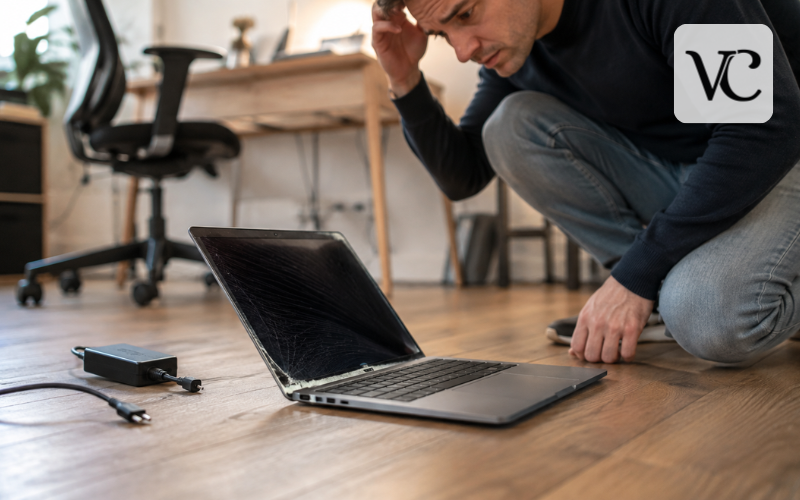
If your first thought is, “I dropped my laptop—what should I do now?”, do not immediately assume it is ruined. Modern laptops can sometimes survive a fall, especially when the drop is short and the device lands on a softer surface. However, even a laptop that looks fine from the outside can have damage that is not immediately visible.
A fall can affect the screen, hinges, battery, charging port, storage drive, cooling fan, internal connections, or outer frame. The result depends on how far the laptop fell, which part hit the ground first, and what type of surface it landed on.
The safest approach is to check the laptop in a sensible order. Start with battery and electrical safety, inspect the outside for physical damage, and only then test whether it starts normally. If it powers on, check the display, storage, keyboard, trackpad, charging, ports, wireless connections, and other important functions.
Some laptops continue working normally after a fall and never develop a problem. Others may initially seem fine but later show signs such as flickering, unexpected shutdowns, unusual noises, or charging problems. A careful check now can help you spot those warning signs early.
Snippet-Ready Definition:
“I dropped my laptop” usually means the device has suffered a physical impact that could affect its screen, battery, hinges, storage, ports, or internal parts, even when it still appears to work normally.
Quick Guide: What to Check After Dropping a Laptop
| Situation | What It May Mean | What to Do |
| Laptop works normally | Damage may be minor or hidden | Inspect it and back up important files |
| Screen is black | Screen, display connection, or startup issue | Check power signs and try an external display |
| Screen has lines or patches | Display panel may be damaged | Avoid stressing the lid and consider repair |
| Laptop will not turn on | Power or internal hardware may be affected | Stop repeated startup attempts and diagnose safely |
| Clicking or grinding noise | Possible mechanical HDD damage | Turn it off and protect important data |
| Battery looks swollen | Battery may be damaged | Stop using and charging the laptop |
| Hinge or case is cracked | Structural damage is possible | Avoid repeatedly opening the lid |
Step-by-Step Guide After Dropping Your Laptop
- Disconnect the charger and accessories.
- Check for smoke, heat, unusual smells, or battery swelling.
- Inspect the screen, corners, hinges, vents, and ports for damage.
- Place the laptop on a flat surface and check whether the frame looks bent.
- If everything appears safe, turn it on once and watch for unusual behavior.
- Test the screen, charging, keyboard, trackpad, Wi-Fi, speakers, webcam, and ports.
- Listen for clicking, grinding, scraping, or other new noises.
- Back up important files as soon as possible if the laptop is working normally.
- Seek professional repair if serious physical, battery, display, power, or storage problems appear.
Immediate Safety Checks Before You Test the Laptop
Before pressing the power button, disconnect the charger, USB devices, external drives, headphones, and anything else attached to the laptop. Place the computer on a stable, non-flammable surface and examine it closely.
Pay particular attention to the battery area. Stop using the laptop if you notice smoke, a burning or chemical smell, excessive heat, swelling, or panels being pushed apart. A swollen battery may also cause the keyboard, trackpad, or bottom cover to rise. Dell’s current battery-safety guidance specifically advises users not to use a swollen battery, apply pressure to it, or attempt to puncture or damage it. Apple also recommends that built-in batteries be serviced by trained technicians or according to its official repair procedures.
Do not try to flatten a swollen section of the case or continue charging the device to “see if it still works.” If there is serious battery damage, smoke, extreme heat, or a strong burning smell, further troubleshooting is not worth the risk. Have the laptop inspected by an appropriate repair professional.
If there are no signs of battery or electrical damage, you can continue with a careful physical inspection.
Dropped Laptop: How to Check for Damage
When figuring out how to check a dropped laptop for damage, start with the outside and avoid opening the computer unless you have the right experience and your model is designed for user servicing.
Begin with the lid and corners because these areas often take much of the impact. Look for new dents, cracks, gaps between panels, loose screws, or areas where the case has separated. Turn the laptop over and inspect the bottom cover and vents as well.
Next, place it on a flat table. All four corners should normally sit evenly. If the laptop rocks noticeably or the frame appears twisted, the chassis may have bent during the fall.
Then inspect the charging, USB, HDMI, headphone, memory-card, and other ports. A connector that has been pushed inward or bent may have suffered structural damage. Never force a cable into a port that no longer lines up correctly.
Finally, look at the screen and hinges before switching the computer on. This simple outside-first approach can identify obvious problems without unnecessarily stressing damaged parts.
Can a Laptop Survive a Fall? What Affects the Damage
Yes, a laptop can survive a fall, but there is no reliable way to predict the outcome from the height alone. A short drop can cause significant damage if the machine lands badly, while another laptop may survive a larger fall with only cosmetic marks.
The landing surface matters. Carpet or another soft material can absorb some of the impact, while tile, concrete, and other hard surfaces generally provide less cushioning. The corner or edge that hits first can also concentrate force into one area.
Construction matters too. Laptop models differ in frame materials, hinge design, screen protection, internal layout, and weight. A heavy laptop can experience substantial impact force, but a strong chassis may provide better protection to internal components.
Storage type is also relevant. An SSD stores data electronically and has no spinning platters or moving read/write heads. A traditional HDD is mechanical, so a strong physical impact can be more concerning, especially if it begins clicking or grinding afterward. Seagate notes that persistent hard clicking, clunking, or grinding can indicate a physical drive problem.
Even if everything initially appears normal, continue checking the laptop before assuming the fall caused no damage.
I Dropped My Laptop on the Floor but It Still Works
If you dropped your laptop on the floor but it still works, that is encouraging. It does not mean you need to panic or stop using a perfectly functioning machine, but a few checks are sensible.
Allow Windows, macOS, or your usual operating system to start normally. Make sure the laptop charges and continues running on battery power. Check the keyboard and trackpad, play some audio through the speakers, test the webcam and microphone, and connect to Wi-Fi and Bluetooth.
Try the USB and other ports that you normally use, provided none appear physically damaged. Pay attention to the screen while adjusting its normal viewing angle. It should not suddenly flicker, go black, or display strange colors.
For the next several days, watch for new problems such as freezes, unexpected restarts, charging interruptions, display flickering, unusual fan sounds, or devices suddenly disconnecting.
You may find discussions by searching “i dropped my laptop on the floor but it still works Reddit.” Personal experiences can be reassuring, but they cannot diagnose your machine. Two laptops can fall from similar heights and suffer completely different damage.
I Dropped My Laptop and the Screen Is Black
If you dropped your laptop and the screen is black, first determine whether the computer itself is running.
Press the power button once and look for signs such as indicator lights, keyboard backlighting, fan movement, startup sounds, or other normal activity. If you see or hear these signs but the built-in display remains black, the problem may be concentrated around the screen or display connection rather than the entire computer.
If your laptop supports it and there is no obvious port damage, connect it to a compatible external monitor or television. If an image appears externally while the laptop screen stays black, that strongly narrows the problem toward the built-in display system. Microsoft currently includes checking display connections and external-monitor behavior among its blank-screen troubleshooting steps.
A fall can damage the screen panel, display assembly, hinge area, or an internal display connection. An external monitor working does not identify the exact failed part, but it provides useful information for a repair technician.
If there are no lights, sounds, fan activity, or other signs of power, treat the problem as a no-power or startup issue instead.
I Dropped My Laptop and the Screen Is Messed Up
When someone says, “I dropped my laptop and the screen is messed up,” the symptoms can vary widely. You might see spiderweb cracks, vertical or horizontal lines, flickering, colored patches, black sections, distorted images, or areas that look as though ink is spreading underneath the display.
A screen can sometimes have an intact outer surface while the LCD or OLED panel underneath is physically damaged. This is why a screen that does not appear cracked can still produce lines, dark patches, or unusual colors after a fall.
Watch what happens when you move the lid through its normal range, but do so gently. If the picture changes, cuts out, or flickers at certain angles, there may be damage somewhere in the display assembly or its connection.
Stop repeatedly moving the lid if a hinge is stiff, cracked, pulling away from the case, or making popping sounds. Continued movement can place extra strain on the screen assembly and nearby cables.
I Dropped My Laptop and Now It Won’t Turn On
If you dropped your laptop and now it won’t turn on, start by identifying exactly what “won’t turn on” means.
Check the charging indicator and power button. Look for lights, fan movement, keyboard illumination, sounds, or an image on the screen. A computer with absolutely no response has a different problem from one that receives power but cannot complete its normal startup process.
Dell, for example, separates these situations into no power, no POST, no boot, and no video. POST means the basic self-check the computer performs when it starts. A machine can therefore receive power but fail before it reaches Windows or another operating system.
After a hard impact, possible causes can include a damaged power connection, battery problem, memory or storage issue, motherboard damage, or another internal connection that has been disturbed. The symptoms alone do not prove which component failed.
Avoid repeatedly pressing the power button if you also notice abnormal noises, heat, swelling, or a burning smell. Internal disassembly is best left to someone familiar with the exact laptop model, particularly when the battery cannot easily be removed.
Clicking, Grinding, and Other New Noises After the Drop
New sounds after a fall deserve attention, particularly if the laptop contains a mechanical hard disk drive.
Some normal computer sounds come from fans and, in older systems, mechanical drives. However, persistent hard clicking, repeated tapping, grinding, or clunking from an HDD may indicate abnormal operation or physical trouble. Seagate specifically identifies persistent clicking combined with clunking or grinding as a possible physical drive problem.
If an older laptop begins making these sounds immediately after being dropped and contains important files, avoid repeatedly restarting it simply to see whether it will eventually work. Additional operation of a mechanically damaged drive may complicate data recovery.
Other noises matter too. Scraping could come from a fan that is contacting something, while a new rattle may indicate that a part has shifted or broken. A fan that suddenly becomes much louder should also be investigated, especially if the vents or chassis were damaged.
Check the Hinges, Ports, Keyboard, Trackpad, and Chassis
A laptop can start normally while smaller parts have still been affected by the fall.
Open and close the lid slowly. Both hinges should move smoothly without the case lifting, separating, cracking, or making new popping noises. If one side moves differently from the other, avoid repeatedly operating the hinge until it has been checked.
Next, inspect and test the ports. A USB or charging socket that has moved deeper into the case, become loose, or changed angle should not be forced.
Check every keyboard key, including function keys that you regularly use. Test the trackpad, its clicking action, fingerprint reader if fitted, speakers, microphone, webcam, and headphone connection.
Also inspect the cooling vents. A bent case can partly block airflow or cause the fan assembly to operate incorrectly. Keeping vents unobstructed is important for normal cooling, and manufacturers such as Dell include ventilation checks when troubleshooting heat-related computer problems.
Run Built-In Hardware Diagnostics After a Drop
If the laptop remains stable and shows no safety warning signs, hardware diagnostics can provide another useful check.
Many major laptop manufacturers offer their own diagnostic tools. Depending on the model, these may test memory, storage, battery condition, processor, video hardware, and other components. Using the manufacturer’s own tools is a sensible starting point because they are designed around supported hardware.
HP PC Hardware Diagnostics, for example, currently includes memory tests and other component tests, while HP also provides battery-testing options. Lenovo similarly provides diagnostic suites covering components including memory and storage.
After a significant fall, storage and memory checks are particularly useful if the laptop starts freezing, reports errors, fails to find its operating system, or behaves unpredictably.
A passed diagnostic test is good news, but it is not a guarantee that every physical part is perfect. Software-based tests may not detect a cracked hinge mount, slightly bent chassis, damaged port, or other mechanical problem.
Protect Your Files: Backup and Data-Recovery Priorities
If your laptop works normally after being dropped, use that opportunity to protect your data.
Back up files that would be difficult or impossible to replace, such as personal photos, work documents, financial records, study files, project folders, and other important information. You can use a trusted cloud backup service or an external storage device if the laptop’s ports and storage appear stable.
Do this before running unnecessary stress tests. Your most important goal is not proving that the laptop can handle heavy use; it is making sure valuable information is safe.
If the computer starts only occasionally, concentrate on copying the most important files during the periods when it operates normally. If the storage drive repeatedly disappears or a mechanical HDD starts producing abnormal clicking or grinding, stop repeatedly booting the machine.
Professional data recovery may be worth considering when important information exists only on a drive that appears physically damaged. Physical impacts are among the events that can create data-recovery problems for mechanical storage devices.
When to Keep Using the Laptop and When to Get It Repaired
Continuing to use the laptop can be reasonable when it has no battery warning signs, the chassis and hinges remain sound, the screen works correctly, charging is stable, all important functions operate normally, diagnostics show no problems, and your files are safely backed up.
Professional inspection becomes more sensible when you see a swollen battery, damaged hinge, broken or distorted screen, bent charging port, unreliable charging, repeated shutdowns, boot failures, overheating, or new mechanical noises. A computer that only works intermittently after a fall also deserves closer attention.
Whether repair is worthwhile depends on the laptop’s age, current value, overall condition, repair cost, and the importance of the information stored on it. Replacing a damaged screen or port can make sense on a valuable newer laptop, while extensive motherboard and chassis repairs may be harder to justify on an old machine.
Searches such as “i dropped my laptop Reddit” can lead to useful personal experiences, but they should be treated as experiences rather than diagnoses. One person may drop a laptop onto carpet and have no lasting problem, while another may damage a screen, drive, or hinge from a seemingly minor fall. Base your decision on the condition and symptoms of your own device.
Conclusion
If I dropped my laptop describes what just happened to you, work through the problem in the safest order rather than immediately turning the machine on and off repeatedly.
First check for swelling, heat, smoke, smells, or serious physical damage. Then inspect the case, hinges, screen, ports, and vents. If everything appears safe, test startup behavior, the display, charging, keyboard, trackpad, connections, and other everyday functions. Run the manufacturer’s hardware diagnostics where available and back up important files while the laptop is stable.
A laptop that still works after a fall may be completely fine, but it is worth checking carefully rather than relying only on appearances. If you find battery damage, serious screen or hinge problems, abnormal HDD noises, unreliable power, repeated crashes, or failure to start, stop unnecessary testing and have the laptop professionally inspected.
FAQs
Can a laptop survive being dropped?
Yes. A laptop can survive a fall without serious damage, especially after a short drop onto a softer surface. However, internal or structural damage can sometimes appear later, so a careful inspection is still worthwhile.
I dropped my laptop on the floor but it still works. Should I worry?
If everything works normally, that is a positive sign. Still, inspect the screen, hinges, ports, charging, keyboard, and case, and back up important files in case delayed problems develop.
Why is my laptop screen black after I dropped it?
A black screen after a fall may be caused by screen damage, a disturbed display connection, or another startup problem. Check whether the laptop still shows lights, sounds, or fan activity.
Why won’t my laptop turn on after being dropped?
The impact may have affected the battery, power system, storage, memory, or another internal component. Avoid repeatedly trying to start it if you notice heat, strange smells, swelling, or unusual noises.
Should I repair or replace a laptop after dropping it?
It depends on the damage, laptop age, repair cost, overall condition, and value of your stored data. Minor screen or hinge repairs may be worthwhile, while extensive internal damage may make replacement more practical.
Disclaimer: This information is intended for general laptop troubleshooting and safety guidance only. Laptop designs and damage can vary widely. If you notice battery swelling, smoke, burning smells, severe heat, electrical damage, or serious structural problems, stop using the device and seek qualified professional repair assistance.
Enjoyed this article? Discover more helpful ideas and fresh inspiration on Vogue Cultures.