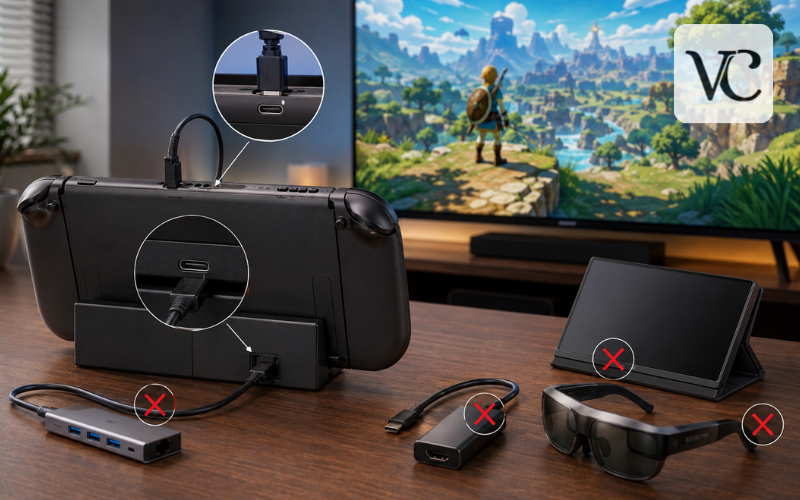
Nintendo Switch 2 has two USB-C ports: one on the top edge and another on the bottom. At first glance, this may suggest that both ports can do the same jobs. In practice, Nintendo assigns them different roles. Both can charge the console, but only the bottom port is officially used to connect the system to a Switch 2 dock. The top port is mainly intended for charging and supported accessories, including USB-C cameras.
The phrase “Switch 2 USB-C port restrictions” does not mean that every third-party product is blocked. It refers to feature and compatibility limits. A charger may provide power but fail to support TV mode. A hub may recognize a controller but provide no HDMI picture. A portable monitor may use a standard USB-C video connection yet receive no image from the console.
These limits matter when buying docks, hubs, chargers, cables, portable monitors, capture devices, or video glasses. Compatibility is also not fixed forever. Nintendo can change system behavior through firmware updates, while accessory makers may release their own updates to restore or improve support. That is why a product described as compatible at launch should still be checked against the console’s current system version.
Snippet-Ready Definition:
Switch 2 USB-C port restrictions refer to the different functions of its top and bottom ports, including limits on video output, docks, chargers, hubs, monitors, and third-party accessories.
Switch 2 USB-C Ports: Quick Guide
| Feature | Top USB-C Port | Bottom USB-C Port |
| Direct charging | Yes | Yes |
| Tabletop charging | Most convenient | Less convenient |
| Supported cameras and accessories | Yes | Limited by accessory |
| Dock connection | No | Yes |
| TV video output | No | Yes, through a compatible dock |
| USB-C-to-HDMI support | Not supported directly | Requires a compatible dock or adapter |
| Portable monitor connection | Usually no direct video | May require a powered Switch 2-compatible dock |
Quick Compatibility Checklist
Before buying a USB-C accessory for Switch 2:
- Confirm that the exact product supports Nintendo Switch 2, not only the original Switch.
- Check whether TV mode or HDMI output is specifically supported.
- Use a charger that meets the dock’s required power rating.
- Choose an accessory with updateable firmware when possible.
- Check the manufacturer’s compatibility page after major console updates.
- Avoid assuming that every USB-C cable, hub, or dock will work.
Top and Bottom USB-C Ports Have Different Roles
The top USB-C port is the more convenient option for handheld and tabletop play. It lets you charge the console while the kickstand is open, so the charging cable does not have to run underneath the system. Nintendo also directs users to connect compatible USB-C cameras to this top port for GameChat and supported in-game camera features. Nintendo warns that not every commercial camera will work, but the console includes a camera test in System Settings.
The bottom port supports direct charging too, but its special role is docking. Nintendo’s specifications identify it as the connector used with the Switch 2 dock. When the console is placed in a compatible powered dock, this connection handles power, data, and the communication needed to enter TV mode.
This means the ports are not interchangeable for display use. Connecting a display adapter to the top port should not be expected to produce TV output. For charging during tabletop play, the top port is usually the practical choice. For TV mode, the bottom port and a compatible dock are required.
What Nintendo Restricts Through Its USB-C System
USB-C describes the connector, but it does not guarantee that every device supports the same features. A USB-C port can carry power, data, video, or a mixture of these functions. The devices on both ends still need to agree on what they will do.
Switch 2 docking goes beyond a simple physical connection. Independent testing found that the console and official dock communicate during power setup and again when negotiating display mode. Accessory makers have also reported that Nintendo-specific vendor-defined messages are important for video output. This helps explain why a standard hub can charge the system while failing to activate a television picture.
Nintendo does not publish a complete public technical guide to the dock handshake. Therefore, claims about exact encryption methods, authentication chips, or message counts should be treated as independent findings rather than confirmed Nintendo specifications. What Nintendo does confirm is simpler: the bottom port connects to the Switch 2 dock, the top port is for accessories or charging, and TV output is provided through HDMI while the console is in TV mode.
Switch 2 USB-C Video Out and TV Mode
Switch 2 USB-C video out works through the bottom connector and a compatible dock. The dock receives the console’s signal, manages the docking process, and sends the picture to a television or monitor through HDMI. When TV mode starts correctly, the console’s own screen turns black and the image appears on the connected display.
Nintendo lists a maximum TV output of 3840 × 2160 at 60 frames per second. At 1920 × 1080 or 2560 × 1440, the system can support up to 120 frames per second. HDR10 is also supported, although the final result depends on the game, display, HDMI connection, and selected settings.
A direct cable from the top USB-C port to a monitor does not activate TV mode. Even a direct connection from the bottom port to a standard USB-C monitor may fail because the console expects the docking process, not only ordinary USB-C display support. In one independent test, a 4K USB-C monitor repeatedly attempted to establish a connection but never displayed an image.
Switch 2 USB-C to HDMI Compatibility
An ordinary Switch 2 USB-C-to-HDMI cable may not work because a basic adapter is designed to convert a standard USB-C video signal. It may not provide the power negotiation or Nintendo-specific dock communication that Switch 2 expects before enabling TV output.
A compatible mini dock is different from a simple cable. It normally includes a USB-C connection for the console, an HDMI output, a power input, and internal hardware or firmware that supports Switch 2 docking. Some products also add USB ports, Ethernet, cooling space, or capture features.
Before buying, check for a clear statement that the exact model supports Nintendo Switch 2, not merely “Nintendo Switch” or “USB-C devices.” Confirm whether a firmware update is required, whether the update tool works with your computer, what charger wattage is needed, and whether HDMI and power cables are included. A listing that only mentions 4K, Power Delivery, or DisplayPort Alt Mode is not enough evidence of Switch 2 TV-mode support.
Official and Third-Party Switch 2 Docks in 2026
The official dock remains the simplest reference option because it is designed around Nintendo’s own power, video, cooling, HDMI, LAN, and USB requirements. It includes two side USB 2.0 ports, an HDMI port, a LAN port, and a dedicated AC adapter connection.
Third-party support is more mixed than the early “nothing works” reports suggested. By 2026, several accessory makers were selling products specifically designed for Switch 2. Antank, for example, lists updateable Switch 2 docks, while AVerMedia instructs owners of certain dock and capture products to install current firmware for proper Switch 2 operation. JSAUX also released a firmware fix after system version 21.0.0 affected one of its adapters.
The lesson is not that every third-party dock is unsafe or unusable. It is that support must be checked model by model. An updateable dock is generally easier for its maker to maintain when Nintendo changes system behavior. Even then, no manufacturer can promise that every future console update will cause no interruption.
Can You Use Any USB-C for a Switch 2 Dock?
No. The connector shape alone does not confirm full compatibility. A cable may fit perfectly but lack the wiring, power rating, data support, or build quality needed for the job. A charger may power the console directly but fail when connected to a dock. A laptop hub may offer HDMI but lack the communication needed to place Switch 2 in TV mode.
For reliable docking, all parts of the chain matter: the dock must support Switch 2 video handling, the power adapter must meet the dock’s requirements, the USB-C cable must carry the required power safely, and the HDMI cable and display must support the chosen output mode.
The original Nintendo Switch dock cannot simply be reused. Nintendo states that only a Switch 2 dock should be used for Switch 2 TV mode. The older Switch AC adapter can charge Switch 2 when connected directly, but it does not provide enough power for Switch 2 docked operation.
Switch 2 USB-C Hub Support and Limitations
A Switch 2 USB-C hub may still provide useful functions without offering video. Depending on the product, it may pass charging power, connect controllers, support a compatible camera, or provide Ethernet. However, these functions do not prove that HDMI output will work.
Powered hubs receive energy from an external charger, so they are better suited to devices that need stable power. Unpowered hubs rely on the console and are more limited. Neither type should be assumed to support TV mode unless the manufacturer specifically confirms Switch 2 compatibility.
Before choosing a hub, check four points:
- The exact model is advertised for Nintendo Switch 2.
- The maker states that HDMI or TV mode is supported.
- The required charger wattage and cable type are clearly listed.
- Firmware can be updated, with current files available from the manufacturer.
Do not treat a USB hub as external game storage. Switch 2 uses microSD Express cards for storage expansion, and Nintendo does not list ordinary USB drives as a way to install or run games.
Switch 2 Dock USB Ports and Supported Accessories
The official Switch 2 dock has two USB 2.0 ports on its side. These can be used for supported wired accessories and for charging devices such as compatible controllers. The dock also has a built-in LAN port, so Ethernet does not need to occupy one of the side USB connections.
The dock’s USB ports do not provide power in every state. Nintendo says a console must be docked and either switched on or in sleep mode. If no console is inserted, or the console is completely powered off, the dock’s USB ports will not output power.
Nintendo also does not guarantee that every commercial USB product will work. A device fitting the port only confirms the physical connection. Support can still depend on device type, power needs, software, and Nintendo’s system features.
Charger, Cable, and Power Delivery Requirements
The Switch 2 dock has higher power requirements than the original Switch setup. Nintendo recommends the Switch 2 AC adapter, model NGN-01. A different adapter and cable may be used with the dock if the output is at least 54W, but Nintendo does not guarantee every third-party combination.
The original HAC-002 Switch adapter remains useful for direct charging. Plug it into the top or bottom port of the console while playing handheld or tabletop. It cannot provide enough power for Switch 2 TV mode through the dock. This is a common reason a console charges outside the dock but shows no picture when docked.
Wattage is not the only detail. The charger must support suitable USB Power Delivery output, and the cable must safely carry the requested power. A low-rated or charging-only cable may cause slow charging, failed docking, or unstable operation. For troubleshooting, use the cable supplied with the Switch 2 adapter or a clearly rated replacement from a dependable maker.
Portable Monitors, Video Glasses, and Capture Devices
Standard USB-C portable monitors and video glasses often expect a direct DisplayPort Alt Mode signal. Switch 2 may not provide that signal through a normal direct connection, even when the display can also power the console. Independent testing of a direct USB-C monitor connection produced no picture.
A more reliable travel setup uses a Switch 2-compatible powered dock or video adapter, followed by HDMI to the display. Some mobile dock makers now advertise Switch 2 support for XR glasses and other portable screens, but buyers should verify the exact connection path and current firmware before ordering.
A capture card usually sits after the dock. The Switch 2 connects to the dock through its bottom USB-C port, the dock sends HDMI to the capture device, and the capture device passes video to a monitor or computer. AVerMedia’s Switch 2 guidance follows this type of bottom-port docking setup and stresses current firmware for supported products.
Switch 2 USB Ports Not Working: Practical Troubleshooting
First identify the failed function. Is the console not charging, is a dock accessory receiving no power, or is TV output missing? Testing one function at a time makes the cause easier to find.
Try the correct charger directly in both console ports. If direct charging works but docked video does not, reconnect the dock’s power and HDMI cables, remove any HDMI splitter, and test the dock directly with the TV. Nintendo recommends an adapter of at least 54W, an Ultra High Speed HDMI cable, and a reset of the power adapter by unplugging it for 20 seconds.
Make sure the console is fully seated, switched on or in sleep mode, and updated. Inspect the USB-C connectors and cables for dust, bent parts, cuts, or loose plugs. Restart the console, reconnect each accessory, and install any dock firmware offered by its maker.
If neither USB-C port charges with a known-good adapter, the console may need service. If direct charging works but the official dock still provides no picture or USB power after Nintendo’s troubleshooting steps, the dock or adapter may need repair.
Reddit Reports, Firmware Changes, and Switch 2 Mods
Reddit can reveal patterns quickly, but individual reports are not controlled tests. One owner may use a different firmware version, charger, cable, television, dock revision, or regional model. A dock working for one person does not guarantee that another product with a similar name will work.
Firmware changes can improve support or temporarily break it. The JSAUX version 21.0.0 case showed that charging hardware could remain physically compatible while display behavior needed an accessory update. This is why model numbers, firmware files, and manufacturer notices matter more than a general comment saying, “My dock works.”
A Switch 2 mod is not a practical answer to ordinary USB-C restrictions. Hardware changes or unofficial system software can create new problems, including damage, instability, lost features, or difficulty receiving support. Most users will get a safer and easier result by choosing a verified dock, correct charger, and updateable accessory rather than altering the console.
Conclusion
Switch 2 USB-C port restrictions are mainly about assigned functions and compatibility. Both ports can charge the console. The top port is intended for charging and supported accessories, while the bottom port is the official connection for a Switch 2 dock and TV output.
The most important point is that USB-C shape does not guarantee identical behavior. A charger, hub, monitor, or HDMI adapter can work for one function and fail at another. For the most dependable setup, use accessories that clearly name Switch 2 support, provide enough power, and offer firmware updates when needed.
Before a major trip or gaming session, recheck the accessory maker’s compatibility page after installing a console update. That small step can prevent the most common problems with charging, dock USB ports, portable displays, and Switch 2 USB-C video out.
Frequently Asked Questions
Can both Switch 2 USB-C ports charge the console?
Yes. Both the top and bottom USB-C ports can charge Switch 2. The top port is usually more convenient during tabletop play because the charging cable does not interfere with the kickstand.
Which Switch 2 USB-C port supports video output?
Only the bottom USB-C port is designed for dock-based TV output. The top port can support charging and selected accessories, but it does not provide direct video output to a display.
Can I use a standard USB-C-to-HDMI adapter with Switch 2?
Most ordinary USB-C-to-HDMI adapters will not work. Switch 2 usually requires a compatible powered dock or video adapter that supports Nintendo’s docking communication and power requirements.
Can the original Switch charger power Switch 2 TV mode?
The original HAC-002 Switch charger can charge Switch 2 directly, but it does not provide enough power for normal Switch 2 TV mode through the official dock.
Why does my USB-C hub charge Switch 2 but show no picture?
Charging and video output use different features. A hub may provide power or recognize accessories while lacking the required video handling, firmware, or dock communication needed to activate TV mode.
Disclaimer: This article provides general information about Switch 2 USB-C port restrictions and accessory compatibility. Features may change through console or accessory firmware updates. Always check Nintendo’s official guidance and the accessory manufacturer’s latest compatibility information before purchasing or connecting third-party products.
Enjoyed this article? Discover more helpful ideas and fresh inspiration on Vogue Cultures.