A laptop screen collects dust, fingerprints, skin oils, and small marks during normal use. Cleaning it may seem simple, but using too much liquid, the wrong cleaner, or a rough cloth can damage the screen surface or its protective coating. The safest way to clean a laptop screen is to start gently: turn off the laptop, disconnect the charger, remove loose dust with a soft lint-free cloth, and use only a small amount of moisture when necessary.
Turning the laptop off makes fingerprints and dirt easier to see against the dark display. Disconnecting the power and accessories also reduces the risk of liquid reaching powered components. Major laptop manufacturers recommend shutting down or disconnecting the device before cleaning.
There is no single cleaning liquid that is ideal for every laptop. LCD, OLED, touchscreen, matte, glossy, and specially coated displays can have different care requirements. For that reason, your laptop manufacturer’s instructions should always take priority over general cleaning advice.
Snippet-Ready Definition:
Cleaning a laptop screen safely means turning off the device, removing dust with a soft microfiber cloth, and using minimal moisture only when needed without spraying liquid directly onto the display.
Quick Guide Table
| Cleaning Need | Best Method | What to Avoid |
| Light dust | Dry microfiber cloth | Rough wiping |
| Fingerprints | Slightly damp lint-free cloth | Heavy pressure |
| Greasy marks | Manufacturer-approved screen cleaner | Household glass cleaner |
| Streaks | Dry with a clean cloth | Too much liquid |
| Stubborn stains | Follow device-specific guidance | Random homemade solutions |
Step-by-Step Guide
- Turn off and unplug the laptop.
- Remove loose dust with a dry microfiber cloth.
- Lightly dampen the cloth if marks remain.
- Wipe gently without pressing hard.
- Never spray water or cleaner directly onto the screen.
- Dry the display completely before turning the laptop back on.
Check Your Laptop Screen Type Before Cleaning
Before reaching for a laptop screen cleaner, it helps to know what type of display you have. Most laptops use an LCD panel, often with LED backlighting, while some newer models use OLED technology. Screens may also be glossy, matte, touch-enabled, or covered with special anti-reflective or anti-glare treatments.
The cleaning method matters because the outer surface is not simply ordinary window glass. Some displays have coatings designed to reduce reflections, fingerprints, or glare. Strong chemicals, abrasive materials, and unsuitable cleaners may affect these surfaces.
Specialty displays need even more care. For example, Apple provides separate cleaning instructions for its nano-texture displays and recommends using the polishing cloth supplied for that surface.
If you are unsure about your screen, find the exact laptop model and check the support or user-manual page from its manufacturer. This is especially important before using alcohol, vinegar, disinfecting wipes, or a commercial screen-cleaning product.
What You Need to Clean a Laptop Screen
For everyday cleaning, you do not need a large collection of products. A clean, soft microfiber cloth is usually the best starting point because it can lift dust and oils without using a rough surface. A soft, lint-free cloth may also be suitable when the manufacturer allows it.
Keep a second clean, dry cloth nearby for removing remaining moisture and finishing the screen. If dry wiping does not remove the marks, distilled or purified water is a simple option for many displays. ASUS, for example, recommends purified water for its general LCD/OLED monitor-cleaning guidance, while Apple recommends water on a soft lint-free cloth for routine MacBook screen cleaning.
A commercial laptop screen cleaner should only be used when it is suitable for your specific display. Ordinary window cleaner, kitchen cleaner, or multipurpose household cleaner should not automatically be considered safe just because the screen looks like glass.
How to Clean Laptop Screen Step by Step
For most laptops, a gentle method is enough to remove ordinary dust and fingerprints.
- Turn the laptop off. Shut it down fully rather than simply dimming the display. Unplug the charger and disconnect other attached devices.
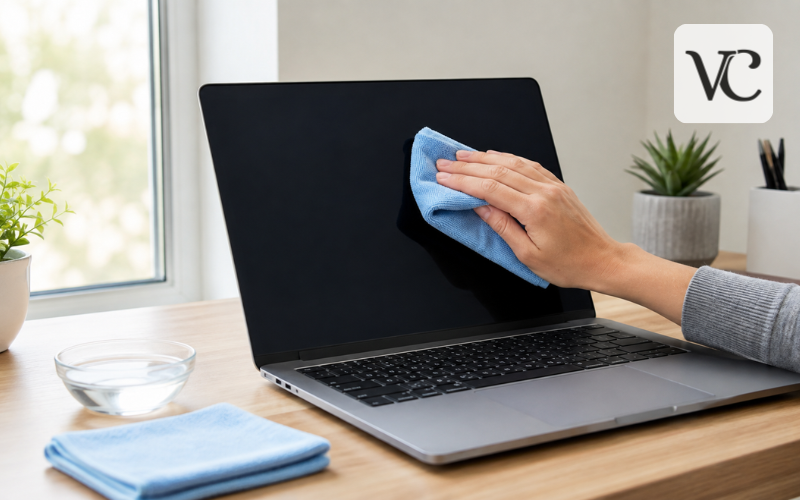
- Remove loose dust. Use a clean, dry microfiber or approved lint-free cloth. Wipe gently without pushing against the panel.
- Dampen the cloth if needed. If marks remain, place a small amount of distilled, purified, or manufacturer-approved cleaning liquid on the cloth. The cloth should feel slightly damp, never wet enough to drip.
- Wipe the screen gently. Use light, controlled passes across the display. Avoid pressing hard on stubborn spots.
- Never spray the screen directly. Liquid can run toward the bezel and openings around the display, where it may reach internal components. Apple, ASUS, and other manufacturers specifically warn against direct spraying.
- Dry before using the laptop. Finish with a clean dry cloth if necessary and allow the display to dry fully before closing the lid or turning the computer back on.
Removing Dust Before Using Any Liquid
Dry cleaning should normally come first. Small particles of dust can sit on the surface and around the edges of a laptop screen. Starting with a clean microfiber cloth helps remove these particles before any damp cleaning is attempted.
Keep your pressure light. There is rarely a reason to push firmly against a laptop display. Instead, allow the cloth to move across the surface gently. ASUS recommends removing dust and loose particles with a clean microfiber cloth before moving to damp cleaning.
Pay attention to the upper corners and areas close to the bezel, where dust may be easier to miss. However, do not push particles deeper into gaps around the screen.
If the laptop only has a light layer of dust, stop after the dry wipe. Adding liquid when it is not needed only creates another opportunity for streaks or moisture to reach places where it should not go.
How to Clean Laptop Screen With Water
If you want to know how to clean laptop screen with water, the important point is to use very little of it. Distilled or purified water is generally preferable because it avoids the minerals that may be present in ordinary tap water.
Do not pour water onto the screen or spray it directly. Lightly dampen a clean cloth instead. It should be damp enough to loosen a smudge but not so wet that you can squeeze droplets from it.
Keep moisture away from the edges of the display, webcam area, hinges, keyboard, ports, and other openings. ASUS warns that liquid entering the edges of a display may damage internal components, while Apple instructs users to avoid getting moisture into openings.
For many ordinary fingerprints and light marks, water and a soft cloth are enough. If they are not, check your laptop manufacturer’s instructions before mixing homemade cleaners such as vinegar and water. A mixture recommended for one display should not automatically be assumed safe for another.
How to Clean a Laptop Screen From Fingerprints and Grease
Fingerprints are among the most common laptop-screen marks, especially on touchscreens. Begin with a dry microfiber cloth. Light fingerprints may disappear without any liquid at all.
For oily marks that remain, slightly dampen the cloth with water or another solution specifically approved for the laptop. Move over the mark gently several times instead of trying to remove it with one hard scrub.
Some manufacturers permit alcohol in certain situations, while others are more restrictive. Apple currently allows a cloth moistened with 70% isopropyl alcohol for hard-to-remove fingerprints on Mac laptop displays. ASUS’s laptop guidance also permits certain alcohol-based or LCD cleaning solutions for its machines. However, ASUS separately warns against alcohol on some LCD/OLED monitor panels because it may affect coatings.
That difference is exactly why checking the instructions for your specific device is safer than following a universal cleaning formula.
How to Clean Laptop Screen Without Streaks
Knowing how to clean laptop screen without streaks is mostly about controlling moisture and keeping the cloth clean. Using too much liquid can leave visible drying marks, while a cloth already covered in skin oils may simply move grease from one part of the display to another.
Start with the smallest amount of moisture possible. As you clean, switch to a fresh section of the cloth when one area becomes dirty. Once the marks are gone, use a separate clean, dry microfiber or lint-free cloth to remove any remaining moisture.
ASUS recommends allowing a laptop screen to dry completely and gently using a dry cloth if marks or streaking remain. Dell’s screen-care guidance also emphasizes applying water to the cloth rather than directly to the display and removing moisture promptly.
Do not close the laptop while the display is still damp. A careful final dry pass usually gives a clearer result than repeatedly adding more cleaner.
Choosing a Safe Laptop Screen Cleaner
A good laptop screen cleaner should be clearly intended for electronic displays and compatible with the type of screen you own. Read the label rather than assuming that any product described as a glass cleaner is suitable.
Check whether the cleaner is approved for LCD, OLED, touchscreen, matte, glossy, or coated displays as appropriate. Even then, compare the product instructions with your laptop manufacturer’s guidance.
Dell advises against ordinary window or household cleaners on laptop LCD screens and recommends products made for LCD displays.
Alcohol is a good example of why checking compatibility matters. Some manufacturers approve certain concentrations for particular devices, while other display-care instructions warn that alcohol may damage screen coatings.
When manufacturer instructions disagree with a general internet cleaning guide, follow the instructions for your laptop. They are written for the materials and coatings used on that device.
How to Clean Laptop Screen and Keyboard Safely
If you are learning how to clean laptop screen and keyboard together, treat them as two different surfaces. Turn off and unplug the laptop before cleaning either area.
Clean the screen with its own soft cloth so dirt and skin oils from the keyboard are not transferred onto the display. Once the screen is finished, use another clean cloth for the keyboard.
Loose crumbs or particles between keys should be removed carefully before wiping the surface. ASUS suggests a keyboard-cleaning brush or air-blaster type tool for particles between laptop keys.
Be especially careful with liquid around the keyboard. A screen can be wiped with a slightly damp cloth when the manufacturer permits it, but liquid running between keys can enter the computer.
Do not assume that a chemical approved for the keyboard is automatically approved for the display. Manufacturers may provide different cleaning instructions for the screen, keyboard, case, and other surfaces.
How to Clean Laptop Screen Lenovo
If you are specifically searching for how to clean laptop screen Lenovo, Lenovo’s general advice begins with a dry, soft, lint-free cloth. Gently wipe or dust the screen before moving to a damp cleaning method.
For stains that remain, Lenovo instructions for various ThinkPad models permit a soft lint-free cloth lightly moistened with water, while some model manuals also allow a specified mixture of isopropyl alcohol and impurity-free water. The important detail is that the cloth should be wrung out thoroughly and liquid should never be allowed to drip into the computer. The display should be dry before the lid is closed.
Because Lenovo has produced many ThinkPad, IdeaPad, Yoga, Legion, and other laptop models with different displays, do not assume instructions from an older model apply to a newer one. Check the support page or user guide for your exact machine before using alcohol or another cleaning solution.
How to Clean Laptop Screen With No Microfiber Cloth
If you need to know how to clean laptop screen with no microfiber cloth, look for a clean, very soft, non-abrasive, lint-free cloth approved for delicate surfaces. The key is avoiding material that feels rough or leaves fibers behind.
A soft optical or lens-cleaning cloth may be a practical temporary alternative if it is clean and has not been exposed to oils or cleaning chemicals. Do not reuse a cloth that has previously been used with furniture polish, window cleaner, or another household chemical.
Avoid toilet paper, kitchen paper towels, rough hand towels, and similar paper or fabric products. ASUS warns that these materials can have relatively rough fibers that may leave tiny scratches on a display surface.
If you clean your laptop regularly, buying a proper microfiber or manufacturer-approved screen cloth is a simple choice. Improvised materials may work in an emergency, but they offer little benefit when a screen-safe cloth is available.
Cleaning Products and Methods to Avoid
Several cleaning mistakes create more risk than the dirt itself. First, never spray water or cleaner directly onto a laptop display. Liquid can move toward the edges and enter internal parts.
Avoid rough cloths, abrasive pads, and excessive pressure. Scrubbing harder is not a better way to remove a stubborn fingerprint. Gentle repeated passes are safer.
Household window cleaners, ammonia-based products, bleach, acetone, strong solvents, and kitchen cleaners should not be used unless your manufacturer explicitly says otherwise. Apple warns against several household cleaners, ammonia, abrasives, and some solvents on its displays, while Dell advises against household and window cleaners for laptop LCD screens.
You may also find vinegar mixtures, alcohol formulas, and other suggestions in how to clean laptop screen Reddit discussions and general online guides. These recommendations should not be treated as universal rules. Official guidance itself varies between devices: a chemical permitted for one laptop can be discouraged for another screen coating.
The safest rule is simple: do not choose a stronger chemical simply because a mark is difficult to remove. Check your exact laptop’s cleaning instructions first.
Conclusion
Learning how to clean laptop screen safely does not require complicated equipment. Begin by turning the laptop off and unplugging it. Remove loose dust with a clean, soft microfiber or lint-free cloth. If fingerprints or other marks remain, use only the small amount of moisture or screen-safe cleaner permitted by your laptop manufacturer.
Never soak the cloth, spray liquid directly onto the display, or scrub stubborn marks with heavy pressure. Keep moisture away from screen edges and openings, and allow the display to dry completely before switching the laptop on or closing the lid.
Most importantly, remember that laptop screens are not all made or coated in exactly the same way. Apple, ASUS, Dell, Lenovo, and other manufacturers sometimes recommend different cleaning solutions for different products.
A gentle, device-appropriate cleaning routine is usually all you need to remove dust, fingerprints, grease, and streaks while keeping the screen clear and avoiding unnecessary damage.
Frequently Asked Questions
Can I clean my laptop screen with water?
Yes. For many screens, a slightly damp cloth with distilled or purified water can remove light marks. Never pour or spray water directly onto the laptop display.
Can I use alcohol to clean a laptop screen?
It depends on the laptop and screen coating. Some manufacturers allow certain alcohol solutions, while others restrict them. Always check your exact device’s cleaning instructions first.
How do I clean fingerprints from a laptop screen?
Start with a clean, dry microfiber cloth. If fingerprints remain, use a barely damp cloth and make several gentle passes instead of pressing or scrubbing harder.
Can I use glass cleaner on my laptop screen?
Generally, ordinary household glass cleaners should be avoided unless the laptop manufacturer specifically approves them. Some formulas may damage anti-glare or other protective screen coatings.
How can I clean a laptop screen without streaks?
Use very little moisture, keep the cloth clean, and finish with a separate dry microfiber cloth. Too much liquid or a dirty cloth commonly causes visible streaks.
Disclaimer: This article provides general laptop-screen cleaning guidance. Screen materials, coatings, and approved cleaning products vary by manufacturer and model. Always check your laptop’s official care instructions before using alcohol, commercial cleaners, or homemade cleaning solutions.
Enjoyed this article? Discover more helpful ideas and fresh inspiration on Vogue Cultures.