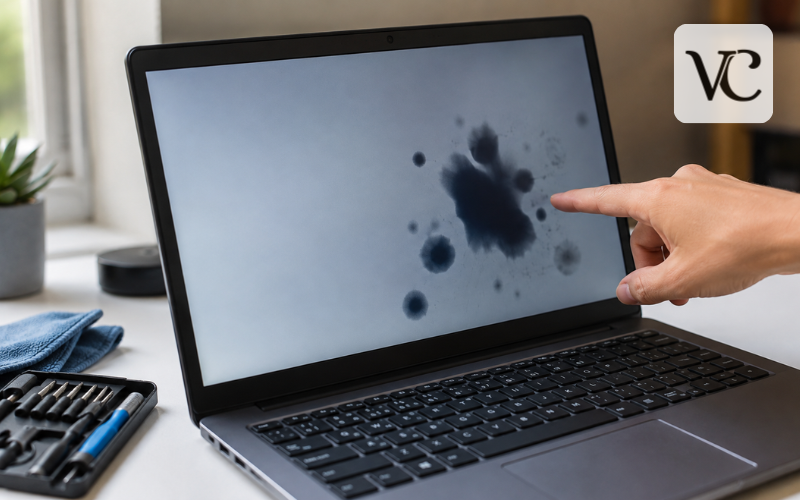
Black pressure marks on a laptop screen can look like dark smudges, ink-like patches, shadows, or bruises beneath the display. At first, you may think the screen is dirty or that a few pixels have stopped working. In some cases, people also assume that Windows, a graphics driver, or another software problem is causing the mark.
However, a persistent black patch that stays in exactly the same place can point to physical damage inside the display panel. Pressure, twisting, an impact, or an object pressing against the closed lid can damage delicate parts of an LCD screen even when the outside of the display looks normal.
That does not mean every dark spot is automatically pressure damage. HP notes that damaged screens can show dark areas, lines, patterns, and other forms of discoloration, while some display problems can also have software-related causes. Proper diagnosis therefore matters before deciding what to repair.
This guide explains what black pressure marks mean, what causes them, how to test your screen, what fixes actually work, and how to reduce the chance of the problem happening again.
Snippet-Ready Definition:
Black pressure marks on a laptop screen are dark, bruise-like patches caused by pressure or physical damage inside the LCD panel. They usually cannot be removed by cleaning or repaired with software.
Quick Guide: Black Pressure Marks on Laptop Screen
| Screen Issue | Common Appearance | Likely Cause | Typical Solution |
| Black pressure mark | Dark or ink-like patch | Pressure on LCD panel | Screen diagnosis or replacement |
| White pressure mark | Bright or pale spot | Localized pressure | Panel inspection |
| Dead pixel | Tiny fixed black dot | Pixel failure | Usually monitor or replace panel |
| Surface dirt | Smudge on screen surface | Dust, fingerprints | Gentle cleaning |
| Cracked LCD | Black areas, lines, distortion | Impact or strong pressure | Screen replacement |
| Software issue | Flickering or display errors | Driver/system problem | Software troubleshooting |
Quick Steps to Diagnose the Problem
- Clean the screen gently with a soft microfiber cloth to rule out surface dirt.
- Take a screenshot and view it on another device. If the mark is absent, the laptop screen may be the problem.
- Connect an external monitor or TV. A clean external image usually points toward the built-in display.
- Run built-in display diagnostics if your laptop manufacturer provides them.
- Avoid pressing or rubbing the mark, as extra pressure may worsen physical screen damage.
- If physical LCD damage is confirmed, check screen replacement and warranty options.
What Black Pressure Marks on a Laptop Screen Actually Mean
LCD pressure marks are usually areas of the screen that have been affected by physical force. Instead of appearing like dirt sitting on top of the display, the mark appears to be underneath the surface.
A pressure-damaged area may look black, gray, cloudy, uneven, or slightly discolored. Some marks have soft edges and resemble a bruise, while more serious damage can produce black patches, colored lines, unusual patterns, or areas where the image is no longer displayed correctly.
This is different from an ordinary fingerprint or surface smudge because cleaning the screen does not remove it.
It is also important not to label every dark area as an LCD pressure mark. A damaged panel, liquid entering the display, a cluster of failed pixels, a cracked screen, backlight problems, or certain graphics issues can create symptoms that look similar. HP, for example, notes that light or dark discoloration may sometimes be associated with liquid entering a display panel.
The safest approach is to identify where the problem is coming from before trying to fix it.
How Pressure Damages the Laptop’s LCD Panel
A laptop display is made from several very thin layers fitted closely together. These layers work together to create the image you see. They are protected by the screen surface and laptop lid, but they are still sensitive to strong or uneven pressure.
If something presses hard against the lid, force can pass through the outer cover and affect the display underneath. The same thing can happen when someone presses directly on the screen or twists the display while opening or carrying the laptop.
This explains why a laptop can develop black pressure marks even when the outer screen does not appear cracked.
Physical screen damage also behaves differently from a software problem. Updating Windows or reinstalling a graphics driver may help when the computer is producing an incorrect image, but those actions cannot rebuild a physically damaged display layer.
Dell’s diagnostic guidance separates panel-related problems from other display issues by recommending hardware screen tests that operate independently of the normal operating-system image.
Common Causes of Black Pressure Marks on Laptop Screens
One of the most common situations is carrying a laptop inside an overloaded backpack. Heavy books, chargers, tablets, or other items can press against the laptop lid for a long period. Even if the laptop has a strong outer shell, enough pressure may reach the display.
Placing heavy objects on a closed laptop can create a similar problem. Phones, books, tablets, or other equipment should not be stored on top of a laptop, especially while it is being transported.
Another risky situation is closing the laptop while something remains on the keyboard. A pen, earbud, USB device, cable connector, or another small object can become trapped between the keyboard and screen. Closing the lid then concentrates pressure into a small area of the display.
Handling habits matter as well. Aggressively wiping the display, picking up a laptop by its screen, twisting the lid, or pressing on a stubborn mark can damage the panel. Dell specifically warns against applying direct pressure to LCD screens because physical damage can result.
Pressure Marks vs Dirt, Dead Pixels, Cracks, and Software Problems
Several screen problems can look similar, so identifying the differences can save you from unnecessary repairs.
Surface dirt normally changes or disappears when the screen is carefully cleaned with an appropriate soft cloth. A true pressure mark remains visible because the problem is inside the display rather than on its surface.
Dead or stuck pixels are usually much smaller. They commonly appear as individual dots or tiny groups of pixels that remain dark or display the wrong color. A pressure mark is more likely to cover an irregular area and may look cloudy, bruised, or distorted.
A cracked LCD can produce more dramatic symptoms, including black patches, colored lines, spreading patterns, or areas that no longer display an image. HP notes that damaged LCD panels can show lines, patterns, or black spots, with some damaged areas becoming larger over time.
Software problems are different because they affect the image being generated by the computer. If an abnormality is visible during an independent hardware display test, that is stronger evidence that the display itself is involved.
Simple Tests to Confirm Laptop Screen Pressure Damage
Before searching for a pressure marks on laptop screen fix, perform a few simple checks.
Start with a screenshot. Take a screenshot while the black mark is visible, then open that screenshot on another phone, computer, or monitor. If the screenshot itself looks normal but the mark remains on your laptop screen, the problem is likely related to the physical display rather than the image generated by the operating system.
You can also connect the laptop to a known-good external monitor or TV. If the external screen displays a clean image while the built-in screen continues showing the mark, the laptop panel or its related display hardware becomes the main suspect. Dell includes external-display testing among its troubleshooting methods for laptop display problems.
Some laptops also include built-in display diagnostics. Dell’s LCD Built-In Self-Test, for example, shows solid colors that can help reveal pressure marks, dead pixels, lines, and distortion without relying on Windows.
Do not press the damaged area during these tests.
How to Fix Black Pressure Marks on a Laptop Screen
People searching for how to fix black pressure marks on laptop screen often hope that changing a setting or using a special program will remove the damage. The correct solution depends on what the tests reveal.
If the mark is actually caused by a software or graphics problem, normal display troubleshooting may help. Restarting the laptop, checking graphics drivers, or running manufacturer diagnostics can make sense when there is no clear sign of physical damage.
However, software cannot repair LCD layers that have been physically damaged by pressure.
For a genuine physical pressure mark, there is usually no setting that can restore the affected area to its original condition. The realistic repair may involve replacing the damaged panel.
This is why diagnosis should come before replacement. You do not want to buy a screen if the real issue is a driver or another component. At the same time, repeatedly experimenting with software will not repair a confirmed physically damaged display.
The goal is to identify the type of fault first and choose the repair that matches it.
Why Pressing, Rubbing, or Pixel-Fixing Tricks Can Make Things Worse
Some online advice suggests rubbing, massaging, squeezing, or pressing a damaged screen to make dark marks disappear. These methods are risky.
A laptop LCD is not designed to withstand repeated direct pressure. If the internal screen layers are already damaged, pushing on the affected area could make the problem larger or create additional damage.
The same caution applies to so-called stuck-pixel techniques. A single stuck pixel and a large pressure-damaged patch are not the same problem. Software that rapidly changes colors may sometimes be discussed in relation to certain pixel problems, but it cannot physically repair a crushed or damaged section of an LCD panel.
Dell advises against pressure-based methods for attempting to correct pixel problems because additional display damage can occur.
If the screen needs cleaning, use only gentle surface cleaning. Do not push harder because a dark spot appears to be underneath the surface. If normal cleaning does not change it, stop treating it like dirt and diagnose the display instead.
When Laptop Screen Replacement Becomes the Real Fix
Once testing confirms physical panel damage, screen replacement is usually the practical repair.
On some laptops, a technician can replace only the LCD panel while keeping the existing display lid, hinges, camera, and other parts. Other models have display assemblies that are more difficult to separate, making replacement of a larger section more practical.
The exact repair therefore depends on your laptop.
Before buying replacement parts, find the full model number and check the original display specifications. Two laptops with similar model names may use panels with different resolutions, connectors, refresh rates, touch capabilities, mounting points, or dimensions.
Warranty coverage should also be checked first. Physical or customer-induced damage is often treated differently from a manufacturing defect, although accidental-damage plans may provide additional coverage depending on the manufacturer and plan.
If you have never repaired a laptop display, professional service is usually safer. Screen assemblies contain fragile cables, bezels, hinges, cameras, and other components that can be damaged during an incorrect repair.
Black Pressure Marks on Lenovo Laptop Screens
Black pressure marks on a Lenovo laptop screen should generally be diagnosed using the same basic approach used for other laptop brands.
First, check whether the mark appears only after Windows loads or whether it is already visible during startup. If it remains visible on startup screens, hardware diagnostics, or other screens outside the normal Windows desktop, that provides stronger evidence that the display itself is involved.
Lenovo publishes customer-induced damage guidance that includes examples of LCD damage and internal liquid-crystal-cell damage, including white spots and other display abnormalities.
If you have a Lenovo laptop with suspected physical screen damage, locate the exact model and serial information before requesting service or buying replacement parts. Lenovo also provides warranty and parts lookup resources for individual devices.
Do not assume that every Lenovo screen with a dark mark needs immediate replacement. Run basic tests first, particularly if there has been no known impact, pressure, or accidental damage.
White Pressure Marks vs Black Pressure Marks on a Laptop Screen
White pressure marks on a laptop screen can have a different appearance from black marks, but physical force can still be a possible cause.
Instead of looking like an ink stain, a white pressure mark may appear as a brighter spot that becomes particularly noticeable against light or solid-colored backgrounds. HP states that localized white or lighter areas can typically result from a sharp object or edge forcefully contacting the display.
Black marks may be associated with more obvious panel damage, blackened areas, cracks, or other internal problems. Meanwhile, an individual dead pixel is usually far smaller than either type of pressure mark.
The important lesson is that color by itself does not provide a complete diagnosis. A white spot is not automatically pressure damage, just as a black spot is not automatically a broken LCD.
Look at the size, shape, behavior, history of physical pressure, and results of hardware tests before deciding what repair is necessary.
Can Black Pressure Marks Spread, and Is the Laptop Still Usable?
Whether a black pressure mark becomes larger depends on the type and severity of the damage.
HP states that when an LCD screen is broken or damaged, black spots, lines, and patterns can increase in size over time. However, this does not mean every small mark will definitely spread. A minor, stable area may remain usable for a considerable period.
If the mark is small, the display remains readable, and the laptop otherwise works normally, you may choose to continue using it while planning a repair. Treat the screen carefully during that time.
Avoid placing pressure on the lid, squeezing the laptop into a packed bag, twisting the display, or repeatedly touching the damaged area.
If the black area begins expanding, new lines appear, the screen starts flickering, or important parts of the display become difficult to see, arranging a repair becomes more urgent.
It is also sensible to keep important files backed up. Screen damage does not normally mean your stored data is damaged, but a failing display can make the laptop inconvenient to use.
How to Prevent LCD Pressure Marks in the Future
Preventing pressure damage is usually easier than repairing it.
When carrying your laptop, use a bag with a properly sized protective laptop compartment. Avoid forcing the computer into a tightly packed backpack where books, chargers, or other objects can press against the lid.
Never place heavy objects on a closed laptop. Before closing the screen, quickly check that no pen, earbud, cable, USB device, or other item is resting on the keyboard.
Handle the lid gently as well. Open it from a sensible position without twisting the display or pulling strongly from one corner. Avoid carrying the entire laptop by holding only the screen.
Cleaning also requires a light touch. Use a clean, soft, lint-free cloth and avoid applying unnecessary pressure. If a mark does not come off with safe surface cleaning, pressing harder is not the solution.
These simple habits reduce stress on the thin display layers and can lower the risk of developing LCD pressure marks after everyday transport and use.
Conclusion
Black pressure marks on a laptop screen are often a sign that something is wrong inside the display, especially when the mark is irregular, remains in the same place, and cannot be removed through gentle cleaning. However, black spots can have several causes, so diagnosis should come before assuming the panel is permanently damaged.
Start by ruling out surface dirt and software-related problems. Check a screenshot on another device, compare the laptop with an external monitor, and use built-in screen diagnostics when your laptop supports them.
If those tests confirm physical LCD damage, avoid rubbing, massaging, squeezing, or repeatedly pressing the affected area. Software cannot repair physically damaged display layers, and additional pressure could make matters worse.
A small stable mark may still allow you to use the laptop while considering your options. For more serious pressure damage, replacing the LCD panel or display assembly is usually the practical solution.
Before arranging a repair, check your laptop’s exact model, replacement-screen requirements, warranty or accidental-damage coverage, and repair cost. That gives you a safer and more informed way to decide whether repairing the screen or replacing the laptop makes the most sense.
FAQs
Can black pressure marks on a laptop screen be fixed?
If the mark is caused by physical LCD damage, software and cleaning will not repair it. A damaged panel may need replacement, especially when the mark is large or worsening.
Do black pressure marks spread over time?
Some physically damaged LCD areas can grow or develop additional lines and dark patches, although not every mark spreads. Avoid further pressure and monitor the screen for changes.
Can I remove laptop screen pressure marks by rubbing them?
No. Rubbing, pressing, or massaging the screen is not recommended. It can place additional stress on the LCD and potentially make an already damaged area worse.
How can I tell if a black mark is screen damage or software?
Take a screenshot and view it on another device, or connect an external monitor. If both look normal while the laptop screen shows the mark, hardware damage is more likely.
Can I continue using a laptop with black pressure marks?
A laptop may remain usable when the mark is small and stable. However, arrange repair if the affected area grows, lines appear, or the screen becomes difficult to use.
Disclaimer: This information is provided for general troubleshooting purposes. Laptop displays and repair procedures vary by brand and model. Avoid applying pressure or opening the screen assembly unless you have suitable repair experience. For confirmed physical damage, check your manufacturer’s warranty terms or consult a qualified repair technician.
Enjoyed this article? Discover more helpful ideas and fresh inspiration on Vogue Cultures.