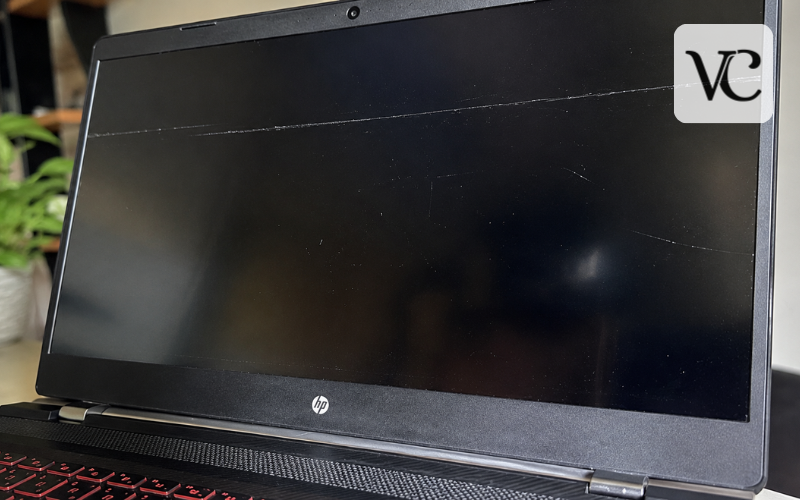
Finding your laptop screen scratched can be frustrating, especially when the mark sits in the middle of the display. However, not every line or mark you see is a permanent scratch. Fingerprints, dried cleaning residue, dust, and marks left by the keyboard can sometimes look surprisingly similar to physical damage.
A light scuff usually affects only the surface and may become less visible after safe cleaning. Coating damage is different because part of the screen’s anti-glare or anti-reflective finish may have worn away. A true scratch creates a physical groove in the surface, while a deep gouge cuts farther into the outer layer. Cracks are more serious and may affect the glass, touch layer, or display underneath.
The most important thing is not to rush into polishing or rubbing the mark. Modern laptop displays can have delicate coatings, and an aggressive DIY treatment can turn a small cosmetic problem into a larger permanent patch. A safer approach is to identify the mark first, clean the screen correctly, and then decide whether anything else should be done.
Snippet-Ready Definition:
A laptop screen scratched means the display surface has visible marks ranging from light scuffs to deeper grooves. Minor marks may be cleaned or reduced, while deep scratches or cracks may require professional repair.
Quick Guide: Laptop Screen Scratch Types
| Screen Mark | What It Usually Means | Best Next Step |
| Smudge or residue | Dirt, oil, or keyboard transfer | Clean gently with microfiber |
| Light scuff | Minor surface mark | Clean first and monitor |
| Fine scratch | Small physical groove | Avoid aggressive polishing |
| Coating damage | Anti-glare layer is worn | Follow manufacturer guidance |
| Deep scratch or gouge | Significant surface damage | Consider professional repair |
| Crack or display lines | Possible panel damage | Screen replacement may be needed |
What to Do If Your Laptop Screen Is Scratched
- Turn off the laptop and unplug the charger.
- Inspect the mark under good lighting.
- Gently remove dust with a clean microfiber cloth.
- Clean the screen according to the manufacturer’s instructions.
- Check whether the mark is residue, a scuff, or a real scratch.
- Avoid toothpaste, abrasive polish, or harsh household cleaners.
- Seek professional repair if you see cracks, black spots, flickering, colored lines, or touch problems.
Identify Whether It Is a Smudge, Scuff, Scratch, or Crack
Start by shutting the laptop down and looking at the screen under soft, bright lighting. Tilt the display slightly so the light moves across the surface. This often makes it easier to see whether the mark is sitting on top of the screen or has actually cut into it.
Fingerprints and oily marks usually change appearance when viewed from different angles. Keyboard transfer marks may follow the shape of individual keys or the trackpad edge. A surface scuff can look cloudy or pale without forming a clear groove. A real scratch normally stays visible after careful cleaning and may be easier to see when light reflects across it.
Avoid repeatedly running your fingernail over the area. If you can already see a deep groove, there is little benefit in pressing on it. More serious damage may also produce black spots, colored vertical or horizontal lines, flickering, distorted areas, dead sections of the display, or cracks spreading from one point.
Correct identification matters before using any laptop screen scratch remover. A product designed for a superficial mark cannot repair damaged pixels, broken glass, or a cracked display panel.
Safety Steps Before Touching a Scratched Laptop Screen
Before cleaning or inspecting closely, turn the laptop off completely. Disconnect the charger and remove connected accessories. Both Apple and Dell advise powering devices down before cleaning their displays.
Use only a clean, soft microfiber or lint-free cloth. Do not use paper towels, tissues, rough fabric, or dirty cloths that may contain tiny particles capable of producing additional marks.
Never spray water or cleaning solution directly onto the laptop screen. Liquid can run around the display edges and enter areas where it should not. If moisture is needed, apply a very small amount to the cloth instead.
Pressure is equally important. LCD, OLED, touchscreen, and very thin laptop panels should be wiped gently rather than pressed or scrubbed. Before using any cleaning product, check the support instructions for your exact laptop model because display materials and coatings can differ considerably.
Clean the Screen Safely Before Deciding It Is Scratched
Cleaning should be your first practical step because dirt can easily be mistaken for damage. Begin with a dry microfiber cloth and gently remove loose dust. Do not grind visible particles into the display.
For marks that remain, follow the manufacturer’s cleaning instructions. Dell’s screen-care guidance published in July 2026 recommends switching the device off, using a dry microfiber cloth first, and lightly dampening the cloth with distilled water for persistent marks. Dell also advises gentle wiping rather than harsh scrubbing.
Apple similarly advises shutting down a Mac, disconnecting power and attached devices, and wiping the screen with a soft, lint-free cloth lightly dampened with water for standard cleaning.
Avoid ordinary household window cleaner unless your laptop manufacturer specifically approves its ingredients. The same caution applies to strong solvents and general-purpose cleaners. Once oils, dust, dried droplets, and keyboard residue are removed, inspect the area again. What appeared to be a serious scratch may turn out to have been surface contamination.
Laptop Screen Scratched by Keyboard: Why These Marks Appear
A laptop screen scratched by keyboard is a common concern with thin notebooks. When the laptop is closed, there may be very little space between the display and the keyboard. If pressure is placed on the lid inside a backpack or tightly packed bag, parts of the keyboard or palm-rest area can come into contact with the screen.
Dust and tiny hard particles make the situation worse. A small grain trapped between a key and the screen can act as an abrasive when the laptop moves during travel.
Keyboard-shaped marks do not always mean the screen has been cut. Oils from the keys can transfer onto the display, creating lines or rectangles that look permanent. Start with careful cleaning before assuming damage.
If the marks remain after safe cleaning, look at them from several angles. A cloudy area may indicate coating wear, while a narrow groove is more likely to be a scratch. If the screen works normally and the mark is only cosmetic, leaving it alone may be safer than trying to polish it away.
Minor Surface Scratches: What You Can Realistically Do
A true scratch means material has been physically disturbed or removed from the screen’s outer surface. Cleaning cannot rebuild that material, so claims that a simple household product can permanently return every scratched screen to factory condition should be treated cautiously.
Very light scratches may appear less obvious after surrounding fingerprints and dirt are removed. Changing screen brightness, using a lighter or darker background, or applying a compatible screen protector in some cases may also make a fine mark less distracting during everyday use.
The safest choice for many cosmetic scratches is simply to live with them, particularly if they are visible only when the screen is turned off. Trying to polish a coated display can remove or alter the finish around the scratch, potentially creating a larger shiny or cloudy patch.
Think about the trade-off. If the display works correctly and the scratch is minor, preserving the original coating may be more important than trying to make one small line disappear.
Laptop Screen Scratch Removers and Repair Kits
A laptop screen scratch repair kit can mean several different things, so the label alone does not tell you whether it is safe. Some kits are simply cleaning sets. Others include protective films, fillers, or polishing compounds intended to alter the surface.
The main issue is compatibility. A polish designed for acrylic, automotive plastic, watch crystals, or ordinary household glass may behave very differently on a laptop display with an anti-glare or anti-reflective coating.
Before using any product sold as a laptop screen scratch remover, check exactly which materials the manufacturer says it supports. Look for clear information about matte screens, glossy displays, touchscreens, OLED panels, and coated glass. If the instructions do not specifically mention your screen type, using the product is a gamble.
Repair kits also have limits. A surface treatment cannot fix damaged pixels, a cracked LCD or OLED panel, broken touchscreen layers, or deep structural damage. In these situations, replacing the affected display assembly is usually the meaningful repair.
Petroleum Jelly, Toothpaste, Erasers, and Other DIY Scratch Advice
Searches such as laptop screen scratched Reddit often lead to suggestions involving petroleum jelly, toothpaste, baking soda, white erasers, automotive polish, or products such as Magic Erasers. Some people report acceptable results, but these methods should not be treated as universal screen repairs.
Petroleum jelly is sometimes suggested as a way to fill a tiny groove temporarily and reduce the way light reflects from it. Even if a mark looks less obvious afterward, the physical scratch has not been repaired, and oily residue can be difficult to remove from some surfaces.
Abrasive methods deserve even more caution. Toothpaste, baking soda, polishing compounds, and cleaning erasers work partly by rubbing away or altering surface material. On a coated display, that can affect a much larger area than the original scratch.
Modern screens also require different care. Apple, for example, provides special instructions for nano-texture displays and recommends the supplied polishing cloth for normal dust and smudge removal. For difficult marks, Apple specifies particular cleaning guidance rather than general household polishing methods.
Forum advice can provide ideas, but the instructions for your exact display should take priority.
Deep Scratches, Gouges, Cracks, and Display Damage
A deep scratch is different from a faint cosmetic line. If the screen has an obvious groove, chipped area, cracked outer surface, or exposed material beneath the top layer, home polishing is unlikely to provide a proper repair.
Pay close attention to how the display behaves when switched on. Flickering, vertical or horizontal lines, black areas that appear to spread, unusual colors, image distortion, or sections that no longer respond to touch can indicate damage below the surface.
Do not press on damaged areas to see whether they improve. Pressure can worsen a cracked panel or cause additional display problems.
Professional inspection becomes sensible when the damage affects normal use, when the glass is cracked, when a touchscreen stops responding correctly, or when the display itself shows image defects. Depending on the laptop, repair may involve replacing the LCD or OLED panel, touchscreen assembly, or complete display unit rather than treating the scratch alone.
Matte, Glossy, Touchscreen, and OLED Screens Need Different Care
The type of screen matters because there is no single scratch treatment suitable for every laptop.
Matte and anti-glare displays usually have surfaces designed to reduce reflections. Aggressive rubbing or polishing may change that finish and leave a shiny patch. Glossy screens may have glass or another smooth outer layer, but this does not automatically make glass polishing compounds safe because additional coatings may still be present.
Touchscreen laptops can include fingerprint-resistant or anti-reflective coatings. These surfaces need to remain smooth and clear for both appearance and normal touch use.
OLED refers mainly to the display technology producing the image, not a guarantee about the outer surface. An OLED laptop may still use coated glass or another carefully finished outer layer.
This is why identifying the exact laptop and display option is useful. Manufacturer documentation is more reliable than choosing a treatment simply because another person’s laptop looked similar.
Dell Laptop Screen Scratched? Follow Model-Specific Guidance
If you are searching for Dell laptop screen scratched advice, start with the support information for the exact Dell model you own rather than assuming every Dell display has the same surface.
The same principle applies to Apple, HP, Lenovo, ASUS, Acer, Microsoft, and other brands. One laptop line may use a matte non-touch display, while another model from the same company may have glossy touch glass or a different coating.
Dell’s current general screen-cleaning guidance advises shutting the computer down, starting with a dry microfiber cloth, and using a lightly dampened cloth with distilled water when needed for persistent marks. Apple publishes different instructions depending on the product and display surface, including dedicated guidance for nano-texture displays.
This variation is exactly why there is no safe universal chemical or polishing rule for every laptop screen. When a scratch is deep or the display is damaged, contact the manufacturer, an authorized service provider, or a reputable laptop repair technician for an assessment.
Screen Scratches Are Different From Lid, Plastic, and Aluminum Scratches
It is important not to confuse display repair with cosmetic laptop-body repair. Someone searching how to remove deep scratches from laptop lid is dealing with a different surface from someone trying to fix a scratched screen.
Likewise, advice about how to remove scratches from laptop plastic may involve products made for the outer case, bezel, or palm rest. These materials are normally very different from the display surface.
An aluminum laptop scratch remover may be intended for bare or finished metal. It should never be assumed safe for glass, plastic display layers, or anti-reflective coatings.
Even on the laptop body, care is needed. Brushed aluminum, anodized finishes, painted metal, and textured plastic can react differently to polishing. A deep body scratch may be impossible to remove without changing the surrounding finish.
Always treat the screen, lid, palm rest, and bottom case as separate surfaces and choose cleaning or repair methods specifically intended for each one.
Preventing Laptop Screen Scratches From Happening Again
Prevention is easier and safer than trying to repair a damaged display. Before closing the laptop, check that the keyboard and palm-rest area are free from crumbs, grit, and other hard particles.
Never close the lid with a pen, charging cable, earbud, USB device, or other object sitting on the keyboard. Even a small item can place strong pressure on the screen when the lid is closed.
When travelling, use a protective sleeve or a laptop compartment that fits the computer properly. Avoid packing the device tightly between heavy books or other items that can press the lid toward the keyboard.
A very thin, clean microfiber separator may help prevent keyboard contact on some laptops, but it should only be used when it does not interfere with the laptop’s closing clearance. Very thick keyboard covers or cloths can create extra pressure instead of preventing it.
Screen protectors can also be useful on compatible devices, particularly some touchscreen and glossy laptops, but they are not suitable for every display. Check manufacturer guidance before applying one.
Conclusion
When you find your laptop screen scratched, the safest response is usually simpler than many DIY guides suggest. First identify whether the mark is dirt, keyboard residue, a scuff, coating damage, a true scratch, or a crack. Then clean the screen gently using instructions appropriate for your laptop and display type.
Minor cosmetic marks often do not require repair at all. If a small scratch does not affect the image or normal use, leaving it alone can be safer than using toothpaste, polishing compounds, erasers, or other abrasive treatments.
Deep scratches, cracked glass, display lines, black areas, flickering, or touchscreen problems deserve professional attention because surface cleaning cannot repair internal panel damage.
Above all, avoid chasing a perfectly invisible result at the cost of damaging the display coating. Protecting the screen’s original surface and keeping the laptop working properly is usually more valuable than aggressively trying to remove a small cosmetic scratch.
FAQs
Can scratches be completely removed from a laptop screen?
True physical scratches usually cannot be completely removed because the screen surface has been damaged. Very light marks may become less noticeable after proper cleaning, but deep scratches often require professional repair.
Why is my laptop screen scratched by the keyboard?
Keyboard marks can occur when pressure pushes the closed screen against the keys. Dust or small particles between the keyboard and display may also cause scuffs or scratches during transport.
Is toothpaste safe for removing laptop screen scratches?
Generally, toothpaste is not recommended. It is mildly abrasive and may damage anti-glare, anti-reflective, touchscreen, or other delicate screen coatings, potentially leaving a larger visible patch.
Do laptop screen scratch repair kits really work?
Some repair kits may reduce the appearance of very minor surface marks, but results depend on the screen material and coating. They cannot repair cracked panels, damaged pixels, or deep structural scratches.
When should I replace a scratched laptop screen?
Consider professional repair or replacement when the scratch is deep, the glass is cracked, or you notice flickering, black areas, colored lines, image distortion, or touchscreen failure.
Disclaimer: The information in this article is for general guidance only. Laptop displays use different materials and coatings, so cleaning or repair methods may vary by model. Always follow your manufacturer’s instructions and seek professional help for deep scratches, cracks, or display problems.
Enjoyed this article? Discover more helpful ideas and fresh inspiration on Vogue Cultures.