
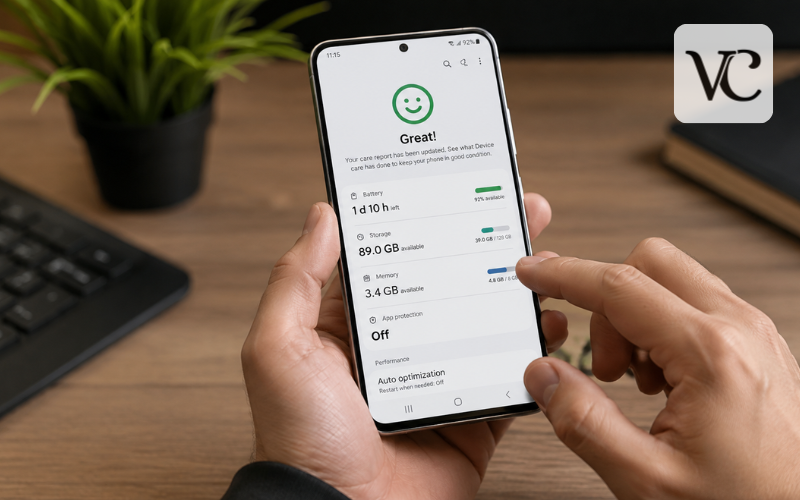
A phone that once felt fast can gradually become slow, laggy, or unresponsive. Apps may take longer to open, typing may feel delayed, scrolling can become less smooth, and the phone may even freeze during normal use. If you are wondering how to fix slow Android phone, the good news is that a factory reset is rarely the first thing you need to try.
Android phones can slow down for several reasons. Low storage is one of the most common. A badly behaving app may also consume too many resources in the background. Other possible causes include outdated apps, software problems, overheating, or a weak internet connection that makes online apps seem slower than the phone actually is.
Google recommends troubleshooting Android performance problems step by step, beginning with simple actions such as restarting the phone, checking updates, reviewing storage, and testing apps. Google also notes that phones can begin having problems when less than 10% of their storage remains free.
The best approach is therefore to start with easy fixes and test the phone after each major change. This helps you find the real cause instead of deleting everything unnecessarily.
Snippet-Ready Definition:
How to fix a slow Android phone: Restart the device, free up storage, remove unused apps, clear problem-app cache, install updates, and check background activity before considering a factory reset.
Quick Guide Table
| Problem | Recommended Fix |
| Phone suddenly feels slow | Restart the device |
| Storage almost full | Delete unnecessary files and unused apps |
| One app is lagging | Clear that app’s cache and update it |
| Phone freezes often | Test downloaded apps using Safe Mode |
| Samsung phone is slow | Check Settings > Device care |
| Browsing is slow | Test Wi-Fi and mobile data separately |
| Interface feels sluggish | Reduce animation scales to 0.5x |
| Nothing fixes the problem | Back up data and consider a factory reset |
Step-by-Step Guide to Speed Up an Android Phone
- Restart your phone and check whether performance improves.
- Check storage space and remove files or apps you no longer need.
- Clear the cache of apps that are specifically slow or unstable.
- Update Android and your apps to install available fixes.
- Check background apps and restrict troublesome ones when appropriate.
- Use Safe Mode if the phone keeps freezing or slowing down.
- Check overheating and battery behavior for signs of another problem.
- Factory reset only as a last resort after backing up important data.
Start With the Fastest Fixes: Restart and Check the Basics
Start by restarting your Android phone. A restart ends temporary processes, reloads the operating system, and can clear small software problems that have built up during normal use. If the slowdown appeared suddenly, this simple step may be enough.
After restarting, pay attention to where the problem occurs. If the entire phone feels slow—including Settings, the home screen, and several apps—the issue may be related to storage, software, heat, or a system-wide problem. If only one app is slow, focus your troubleshooting on that app first.
For the quickest approach, restart the device, check the available storage, update any app that is causing trouble, and remove anything recently installed if the slowdown began immediately afterward.
Google’s Android troubleshooting instructions also point out that Settings menus can vary between devices. A Samsung Galaxy, Google Pixel, Motorola, Xiaomi, OnePlus, or another Android phone may use slightly different names for the same settings.
Free Up Storage Before Performance Gets Worse
Storage is one of the first things to check when learning how to make your phone run faster on Android. Open Settings > Storage, or search for “Storage” inside Settings if your phone uses a different menu layout.
Google says an Android phone can start experiencing problems when less than 10% of its storage is available. You do not need to keep your phone almost empty, but leaving reasonable free space gives Android more room to handle apps, updates, temporary files, and other system tasks.
Look for old downloads, large videos, duplicate files, offline movies, unused documents, and apps you no longer need. Be careful not to delete personal files simply to create space.
Photos and videos can often be backed up before local copies are removed. Google also provides Android storage tools that can help identify unused files, downloads, and apps. Devices that support automatic app archiving can remove rarely used app installations while preserving their personal app data for later restoration.
Aim to create useful free space rather than repeatedly deleting tiny files that make little difference.
Clear App Cache and Remove Unused Apps Safely
If one app has become unusually slow, clearing its cache may help. App cache consists of temporary files stored to help an app work efficiently. Sometimes those files become excessive or cause problems.
On many devices, open Settings > Apps, select the problem app, choose Storage or Storage & cache, and tap Clear cache.
Do not confuse this with Clear storage, Clear data, or similar wording. Google explains that clearing cache removes temporary data, while clearing storage permanently removes the app’s stored data. Depending on the app, that may remove saved settings, downloaded information, or account details and require you to sign in again.
There is also little reason to clear every app’s cache every day. Android manages temporary files automatically, and some apps may initially load more slowly after their cache has been removed.
Instead, clear the cache of an app that is actually causing problems and uninstall large or unused apps that serve no useful purpose.
Reduce Background Activity Without Breaking Important Apps
Some apps continue performing useful tasks when you are not actively looking at them. Messaging, email, navigation, cloud backup, and other services may need background access, so aggressively restricting everything can create new problems.
Start by checking battery or app usage in Settings. If one app appears to be using unusually high resources and you rarely need it, uninstalling it may be better than constantly trying to stop it.
If you want to keep an app, your phone may offer Optimized, Restricted, sleeping-app, or similar battery settings. Use stronger restrictions carefully because they may delay notifications or prevent background syncing.
You also do not need to repeatedly close every app shown on the recent-apps screen. Google’s Android storage guidance says apps generally do not need to be closed unless one is not responding.
Avoid treating third-party “RAM booster,” “speed booster,” or aggressive cleaner apps as a necessary maintenance tool. Adding another constantly running utility does not automatically solve the underlying cause of poor performance. Built-in Android and manufacturer tools should normally be your starting point.
Fix an Android Phone That Runs Slow and Freezes
An Android phone running slow and freezing needs slightly different troubleshooting because the problem may involve one unstable app.
If the screen is frozen and the phone will not respond, Google says that on many Android devices you can hold the power button for about 30 seconds to force a restart. The exact method can vary by model.
If the freezing keeps returning, notice what happens immediately before it. Does it occur when opening one app, playing a game, using the camera, or performing any particular task?
Safe Mode is useful for investigating downloaded apps. It temporarily disables downloaded applications. If the phone works normally in Safe Mode, Google says a downloaded app is likely responsible. You can then restart normally and remove recently downloaded apps one at a time, testing after each removal.
For an Android phone running slow and freezing on Samsung, the same principle applies. Samsung users can also inspect Device care and use Samsung Members diagnostics if the issue continues.
Make Your Android Phone Feel Faster in About 10 Seconds
Searches for how to speed up your Android phone in 10 seconds often promise instant performance improvements, but there is no setting that suddenly upgrades your processor, RAM, or storage hardware.
What you can do quickly is improve how responsive the phone feels. If one app is frozen, close or force-stop that particular app. Remove an unnecessary live widget if the home screen is struggling, or restart a troublesome app.
Reducing interface animations can also make navigation feel quicker, which is covered in the next section.
Remember that a phone that looks faster is not necessarily doing demanding work faster. If low storage, overheating, an unstable app, or aging hardware is the real cause, you still need to address that problem.
Use Developer Options to Speed Up Animations
Android’s Developer Options contain animation controls that can make menus and transitions appear faster. They do not increase processor speed, add RAM, or improve storage performance.
On many Android devices, open Settings > About phone and find Build number. Tap it repeatedly—commonly seven times—until Developer Options are enabled. The exact location may differ by manufacturer.
Next, open Developer Options and find Window animation scale, Transition animation scale, and Animator duration scale. Changing these from their normal value to 0.5x shortens many visual transitions.
Android’s official developer documentation confirms that lower Window and Transition animation scale values result in faster animation playback.
This can be useful if you are searching for how to make your phone run faster Android developer options, but keep the benefit in perspective. It changes how quickly animations play rather than repairing a phone that has serious performance problems.
How to Make a Samsung Android Phone Run Faster
If you are specifically searching for how to fix a slow Android phone Samsung, Galaxy devices include their own Device care tools.
On current supported Galaxy software, go to Settings > Device care. Samsung’s 2026 guidance says Optimize now can check the device for issues, close certain background apps, and perform optimization tasks. Storage can also be reviewed from Device care to find files that are taking up space.
You may also find Memory > Clean now, which stops selected background apps. Apps that must continue working can be added to an excluded list on supported devices.
Do not repeatedly clean memory simply because the button is available. Use it when the Galaxy phone is behaving poorly or a background app appears to be causing trouble.
Samsung menus vary according to Galaxy model, software version, region, and One UI version, so your screen may not look exactly the same as instructions written for another device.
Fix Slow Browsing When the Rest of the Phone Seems Fine
Sometimes the answer to why is my phone slow in browsing has little to do with Android performance.
If menus and offline apps work normally but websites, streaming services, or online apps are slow, test the connection first. Turn Wi-Fi off and try mobile data. Then turn mobile data off and test Wi-Fi. Google recommends this comparison when troubleshooting Android internet connections.
If only Wi-Fi is slow, move closer to the router and restart it if appropriate. If mobile data is slow, check signal strength and whether the issue changes in another location.
When only one browser has problems, update it and close unnecessary tabs. Clearing that browser’s cache may help when its temporary data is causing an issue, but avoid deleting passwords, cookies, or other browsing data unless you understand what will be removed.
If every device connected to the same Wi-Fi is slow, the router or internet service is a more likely cause than your Android phone.
Update Android and Apps for Better Stability
Software updates can contain security improvements, bug fixes, compatibility changes, and other corrections. Check your phone’s system-update area and install supported updates that are available for your device.
Apps should also be kept current. In Google Play, open your profile, choose Manage apps & device, and review available updates. Google currently allows you to update individual apps or update all available apps together.
Restart the phone after a significant system update if needed, then test its performance.
However, do not assume every update will make an older phone faster. New software can sometimes demand more from aging hardware. If severe slowdown begins immediately after one particular app was updated, test other apps and look for another update or fix from that app’s developer rather than resetting the entire phone.
Find Problem Apps, Overheating, Battery, or Security Issues
Persistent lag sometimes requires closer investigation. Think about what changed before the problem started. A recently installed app, unusual battery drain, frequent advertisements, unexpected pop-ups, or unexplained background activity may provide useful clues.
Heat can also affect performance. Android’s developer documentation explains that devices may reduce performance when thermal conditions become too demanding. If the phone becomes unusually hot during normal light use, remove it from direct sunlight, stop demanding tasks, and allow it to cool. Persistent overheating may deserve manufacturer support.
If you suspect an app problem, Safe Mode remains one of the safest tests because it temporarily disables downloaded apps.
For security checks, Google Play Protect scans Android devices for potentially harmful apps and is enabled by default. Avoid installing random “virus cleaner” apps simply because an advertisement claims your phone is infected.
Samsung Galaxy owners can also use Samsung Members diagnostics on supported devices to test phone functions and submit error reports for issues such as overheating or slow performance.
Factory Reset as a Last Resort
A factory reset should come near the end of the troubleshooting process, not the beginning. Consider it when the whole phone remains unusually slow after you have restarted it, freed storage, updated the software, checked problem apps, and tested Safe Mode.
Back up anything important first. Depending on your setup, this may include photos, contacts, messages, documents, authenticator information, downloads, and files stored only on the device. Android provides Google Account backup options, but check that the information you care about has actually been backed up before resetting.
Google clearly states that a factory reset erases data from the phone and uninstalls apps and their data, although information backed up to your Google Account may be restored afterward.
After resetting, consider testing the phone before immediately reinstalling every previous app. If it works well when clean but becomes slow after certain apps return, you have an important clue about the cause.
If the phone remains very slow even after a clean reset, the issue may involve aging hardware, failing storage, battery condition, physical damage, or another problem requiring manufacturer or repair support.
Conclusion
Learning how to fix a slow Android phone is mainly about finding the cause in the right order. Start with a restart, check how much storage remains, investigate troublesome apps, install appropriate updates, and determine whether freezing or slow browsing has a separate cause. Use Safe Mode when downloaded apps may be responsible, and treat a factory reset as a final troubleshooting step.
Regularly removing apps and files you genuinely no longer need can also prevent storage from becoming unnecessarily crowded. You do not need to constantly clear RAM, delete every cache file, or install several phone-cleaning apps to keep Android working properly.
Finally, remember that Android settings differ between brands, models, and software versions. Samsung Galaxy devices may offer Device care features that are not available under the same name on another phone.
A slow phone is often fixable without drastic action. Work through the simple causes first, change one thing at a time, and test the device after each step. That gives you the best chance of restoring reliable everyday performance while keeping your files and settings safe.
FAQs
Why is my Android phone suddenly so slow?
A sudden slowdown can come from a troublesome app, low storage, overheating, a software issue, or an update. Restart the phone first, then check recently installed apps, storage, and available updates.
Does clearing cache make an Android phone faster?
Clearing the cache of a problem app can help if temporary files are causing errors or lag. It is not necessary to repeatedly clear every app’s cache as routine maintenance.
How much free storage should an Android phone have?
Google notes that Android phones can start experiencing problems when less than about 10% of storage is available. Keeping some free space helps the system manage apps, updates, and temporary files properly.
Why is my Samsung Android phone running slow and freezing?
A Samsung phone may slow down because of low storage, problematic apps, heat, or software issues. Check Device care, restart the phone, update software, and use Safe Mode if freezing continues.
Will a factory reset make my Android phone faster?
A factory reset may help when persistent software or app problems cause slowdown, but it erases locally stored data and apps. Back up important information first and use resetting only after simpler fixes fail.
Disclaimer: Android settings and menu names vary by phone brand, model, Android version, and manufacturer software. Back up important data before deleting files, clearing app storage, changing advanced settings, or performing a factory reset.
Enjoyed this article? Discover more helpful ideas and fresh inspiration on Vogue Cultures.