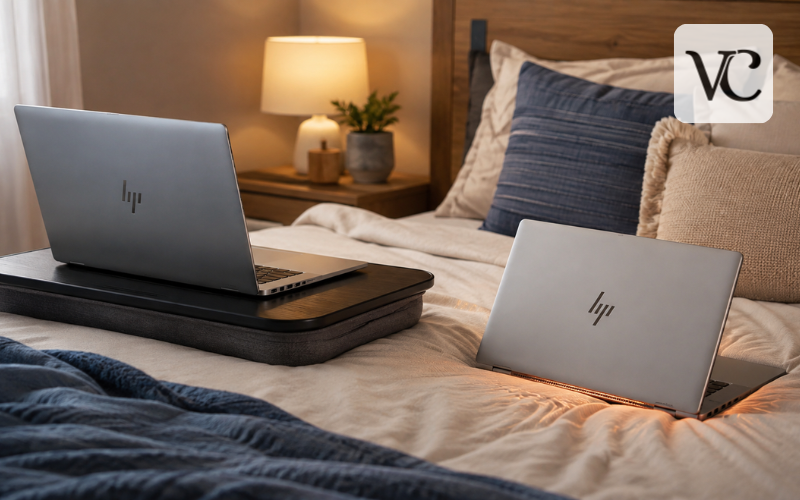
Using an HP laptop on a bed may feel convenient when you are watching videos, studying, browsing, or working before sleep. The problem is not the bed itself. The main issue is what the soft surface can do to the laptop’s airflow. Blankets, mattresses, pillows, and even thick clothing can press against vents or leave too little space for warm air to escape.
HP warns that placing a notebook on cloth surfaces such as a bed, lap, or couch cushion can restrict or completely block airflow. The company recommends using the laptop on a hard, level surface so its cooling system can work properly. Some HP models place vents underneath, while others use vents on the sides or rear, so the exact airflow path depends on the model.
This article explains the heat, performance, battery, charging, and gaming risks, plus safer ways to use an HP laptop in bed.
Snippet-Ready Definition:
Using an HP laptop on bed can restrict airflow because soft bedding may block cooling vents. A hard, flat surface helps improve ventilation, reduce heat buildup, and support safer laptop use.
Quick Guide: HP Laptop on Bed
| Situation | Risk Level | Better Option |
| Laptop directly on mattress | High | Use a hard tray or lap desk |
| Laptop on a blanket | High | Keep vents fully uncovered |
| Laptop on a hard board | Lower | Leave space around vents |
| Gaming on bed | Higher | Use a desk or cooling stand |
| Charging on bed | Moderate to high | Keep laptop and charger ventilated |
Simple Steps to Use an HP Laptop Safely on Bed
- Place the laptop on a hard, stable surface.
- Keep bottom, side, and rear vents open.
- Do not cover the laptop or charger with blankets.
- Avoid long gaming sessions directly on bedding.
- Check for loud fans, unusual heat, lag, or shutdowns.
- Clean visible dust from vents when necessary.
Why Using an HP Laptop Directly on a Bed Can Cause Overheating
A laptop produces heat whenever its processor, graphics chip, storage, battery, and other components are working. That heat needs a path out of the computer. On many HP notebooks, cool air enters through vents underneath or around the case, while warm air leaves through vents at the side or rear.
A mattress or blanket can press against these openings. Even if a vent is not fully covered, a soft surface can reduce the space available for air to move. The fan then has to work harder, and heat can build up inside the chassis.
Some warmth is normal during charging or demanding work. Overheating is more concerning when unusual heat comes with loud fans, slower performance, or instability.
HP notes that vent locations vary and that some HP laptops do not have visible vents, so owners should check their specific model rather than assuming every notebook cools in exactly the same way.
What Happens Inside an HP Laptop When Airflow Is Blocked
The CPU handles much of the laptop’s everyday computing, while the GPU deals with graphics and visual workloads. Both create more heat when they work harder. A cooling system usually moves this heat through internal cooling parts and pushes it away with fans.
When bedding limits airflow, hot air may not leave as efficiently and cooler air may not reach the cooling system fast enough. Internal temperatures can rise, especially during gaming, video editing, software installation, large file transfers, or other demanding work.
Modern laptops also have protective controls. On supported HP gaming systems, for example, HP explains that the computer can reduce processor use when a predefined maximum temperature is reached, helping the system cool down. This means an overheating laptop may suddenly feel slower even though nothing appears wrong with the application you are using.
This protection helps, but good airflow is still essential.
Common Signs Your HP Laptop Is Getting Too Hot on the Bed
The first warning is often the fan. It may become noticeably louder, speed up for long periods, or keep running even when you are doing fairly light work. HP lists louder fans, slower tasks, unresponsive Windows, game freezes, restarts, and input problems among symptoms that can appear when a computer overheats.
You may also notice that the bottom case, keyboard area, or air coming from the exhaust feels much hotter than usual. Heat alone does not always mean there is a fault; unusual behavior matters too.
Slow performance, lag, freezing applications, repeated crashes, or sudden shutdowns deserve attention. If these symptoms mainly happen while the HP laptop is on a bed but improve after moving it to a desk, restricted airflow is a strong possibility.
If the same problems continue when the laptop is sitting on a hard, well-ventilated surface, the cause may be something else, such as dust buildup, excessive background activity, a cooling fan problem, or another hardware issue.
HP Laptop Overheating and Shutting Down
An HP laptop overheating and shutting down repeatedly should not be ignored. High internal temperatures can make Windows unstable, cause programs to stop responding, or trigger a restart. Protective controls can limit heat-related damage, but repeated overheating still needs investigation.
Blocked vents are one possible cause, particularly if shutdowns happen when the laptop is on bedding. Dust inside or around the vents can also reduce airflow. A failing fan, outdated BIOS, unusually heavy CPU use, or another hardware problem may produce similar symptoms.
Start by moving the laptop to a hard, level surface and allowing it to cool. If the problem returns during normal use, check that the vents are clear and listen for abnormal fan sounds.
HP recommends further troubleshooting, hardware testing, BIOS updates where appropriate, and contacting support if overheating continues.
Repeated sudden shutdowns are not normal everyday behavior, even if the computer starts again afterward.
HP Laptop Overheating When Charging on a Bed
It is common for a laptop and its power adapter to become somewhat warmer while charging. The battery is receiving energy, the charging system is active, and you may also be using the processor and graphics hardware at the same time. If demanding applications are open, total heat output can rise further.
So, if you are wondering why my laptop is heating while charging, mild warmth can be normal. The concern is excessive or persistent heat, especially when the laptop is resting on bedding that restricts airflow.
The charger needs ventilation too. HP advises using its AC adapter on a hard, flat surface and warns against covering it with blankets, clothing, books, or other items that can trap heat. HP also says an adapter may become warm when the battery is recharging or when many applications are running.
Microsoft also warns that excessive heat can make lithium-ion batteries age faster and permanently reduce capacity.
For this reason, HP laptop overheating when charging should be taken more seriously when the heat is unusually strong, continues for long periods, or comes with performance problems.
Brand-New HP Laptop Overheating: Is It Always a Problem?
A brand-new HP laptop overheating can be worrying, but a warm new computer is not automatically defective. During the first hours or days of use, Windows may be downloading updates, installing drivers, syncing files, scanning content, or building its search index.
Microsoft says initial Windows indexing can take up to a couple of hours and continues in the background as files change.
Those background tasks can temporarily increase processor use and fan activity, especially while charging or sitting on a soft bed.
First, move the new laptop to a hard surface, finish pending Windows and HP updates, restart it, and see whether temperatures and fan noise settle during normal light use.
If the laptop remains extremely hot, repeatedly shuts down, reports fan errors, or shows the same symptoms even when properly ventilated, continue troubleshooting rather than assuming the behavior is part of the setup process.
For a new device still under warranty, persistent overheating is also a sensible reason to contact HP support.
How to Use Laptop on Bed Without Overheating
The safest answer to how to use laptop on bed without overheating is simple: do not let the laptop sit directly on soft bedding. Put a firm surface between the computer and the mattress.
A rigid lap desk, tray, or similar platform keeps fabric away from the underside and gives the laptop a stable base. Check where your model draws in and exhausts air, and make sure those openings remain clear. Do not let a blanket curl around the sides or rear of the machine.
HP recommends keeping a notebook upright on a sturdy, level surface and providing clearance around its vents. Its current support guidance specifies about 15.25 cm, or 6 inches, around each vent where practical.
For simple browsing or streaming, a hard surface may be enough. If the laptop becomes unusually hot, reduce the workload and let it cool.
The main goal is to give the laptop enough open space to move cool air in and warm air out.
Safer Bed Setups: Lap Desk, Cooling Pad, or Hard Surface
A foldable lap desk is usually the most convenient option for bed use because it creates a stable work area without putting the laptop directly on the mattress. Models with legs can also keep the computer farther away from blankets and make typing more comfortable.
A cooling pad can help during demanding work, but it does not replace clear vents. It should fit the notebook without blocking its intake or exhaust.
A hard tray or sturdy board can also work as a simple solution. The important feature is rigidity: it should not sink into the mattress and block the underside of the laptop. Avoid unstable objects that can tilt, slide, or cover vents.
Before choosing a setup, check the bottom, sides, and rear because vent placement varies by model.
Even a simple hard platform is generally more suitable than placing the computer directly on blankets or a soft mattress.
HP Laptop on Bed Gaming: Why Gaming Needs Extra Care
HP laptop on bed gaming needs more caution than light web browsing because games can place a heavy load on both the CPU and GPU. As those components work harder, they consume more power and produce more heat.
HP specifically notes that graphically intense games make a computer work harder and generate additional heat.
On OMEN and Victus gaming systems, HP also explains that performance modes can increase CPU and GPU activity, fan speed, heat, and noise. Proper airflow and room temperature directly affect how effectively the system can cool itself. HP’s gaming guidance specifically recommends placing the computer on a hard surface and states that soft surfaces such as beds can block bottom fan air inlets.
For long gaming sessions, a desk or solid stand is usually better than the mattress.
If games begin stuttering unexpectedly, the fans remain at high speed, the case becomes unusually hot, or the laptop freezes or shuts down, stop and investigate the heat issue before continuing.
HP Laptop Overheating Fix: Practical Steps to Cool It Down
A useful HP laptop overheating fix starts with the simplest causes. Move the notebook off the bed and place it on a hard, level surface. Let it cool, then check the underside, side, and rear vents for anything that could block airflow.
Close programs you are not using, especially games, editing software, or other applications that keep processor use high. A restart can also clear a temporary background process that is consuming resources. HP recommends reducing unnecessary startup applications and closing unused programs to lower heat.
If the vents have visible dust, shut the computer down and disconnect power before cleaning. HP recommends canned air for notebook vents and says you do not need to open the computer just to clean the exterior vent areas.
Also check HP Support Assistant and Windows Update for appropriate updates. Some HP models include thermal controls such as HP CoolSense, HP Command Center, or OMEN Gaming Hub; availability varies by model.
If overheating, fan errors, freezing, or shutdowns continue after basic checks, use HP hardware diagnostics or obtain professional support.
Dust, Lint, and Vent Cleaning When You Regularly Use a Laptop in Bed
Beds contain fabric fibers, dust, hair, and other small particles that can collect around a laptop. A fan-cooled notebook continuously moves air, so debris can gradually gather near ventilation openings and cooling components.
HP confirms that dust and debris can accumulate in and around vents, restrict airflow, and make fans work harder to remove heat.
Regularly inspect the external vents, especially if you often use the laptop around blankets, pets, or dusty rooms. If buildup is visible, shut the laptop down, unplug it, and follow the cleaning instructions for your HP model. Avoid pushing objects deep into openings or using liquids around vents.
Do not open the case simply because the laptop feels warm. Internal cleaning can involve delicate connectors, fans, batteries, and model-specific disassembly steps. If the fan is grinding, not spinning, or the laptop continues overheating after external cleaning, professional service is the safer option.
A hard surface still matters because even clean bedding can block airflow.
HP Laptop on Bed Reddit Advice: What to Use and What to Ignore
People searching for HP laptop on bed Reddit discussions often want to know whether other owners have experienced the same heat, fan noise, or shutdowns. User experiences can reveal patterns, especially for the same HP model.
However, forum advice should be treated as personal experience rather than universal technical guidance. One person may have an HP Pavilion used mainly for browsing, while another may have an OMEN gaming laptop under a much heavier workload. Their temperatures, fan behavior, vent layouts, room conditions, and power settings can be very different.
The most dependable general advice is also the least dramatic: keep the vents open, use a hard and stable surface, reduce unnecessary load when the machine is too hot, and keep the cooling path clean. Those points match HP’s current support recommendations.
Be cautious with suggestions that involve disabling thermal protections, forcing unsupported settings, opening a new laptop unnecessarily, or applying one model’s temperature expectations to every HP notebook.
Official HP documentation should be your first reference for model-specific troubleshooting.
Conclusion
Using an HP laptop on bed is not automatically harmful, but placing it directly on soft bedding can create an avoidable cooling problem. Mattresses, pillows, and blankets can restrict airflow, especially on models that draw cool air through the bottom. HP therefore recommends a hard, level surface and adequate clearance around vents.
Use a lap desk, solid tray, sturdy board, or another stable platform between the laptop and the bed, and keep the charger uncovered. Pay extra attention during gaming, charging, or other demanding tasks because they produce more heat.
A little warmth is normal, but persistent loud fans, severe slowdown, freezing, or repeated shutdowns should be investigated. Good airflow, clean vents, sensible workloads, and timely troubleshooting can make using an HP laptop in bed much safer and more comfortable without putting unnecessary stress on the computer.
FAQs
Can I use an HP laptop on bed safely?
Yes, but avoid placing it directly on soft bedding. Use a hard lap desk, tray, or board so the cooling vents remain open and airflow is not restricted.
Why does my HP laptop get hot on the bed?
Mattresses and blankets can block ventilation openings and trap warm air. This makes it harder for the laptop’s cooling system to remove heat effectively.
Can using an HP laptop on bed damage the battery?
Repeated exposure to excessive heat can contribute to faster battery aging. Keeping the laptop properly ventilated can help reduce unnecessary heat around the battery and other components.
Is a cooling pad necessary for using a laptop in bed?
Not always. A hard, flat surface may be enough for light use. A cooling pad can be more useful during gaming, editing, or other demanding activities.
Why does my HP laptop shut down when it gets hot?
A laptop may reduce performance or shut down when temperatures become too high. Repeated shutdowns can also indicate blocked vents, dust buildup, fan problems, or another cooling issue.
Disclaimer: This article provides general information about using an HP laptop on a bed and preventing overheating. Cooling designs vary between HP models, so always check your device manual or official HP support guidance for model-specific instructions. If your laptop repeatedly overheats, shuts down, reports fan errors, or becomes unusually hot even on a hard surface, consider professional technical support.
Enjoyed this article? Discover more helpful ideas and fresh inspiration on Vogue Cultures.